Application Code Hub
The Application Code Hub is a collection of applications, demos and examples developed by NXP that allows developers to rapidly prototype or familiarize with different microcontroller applications.
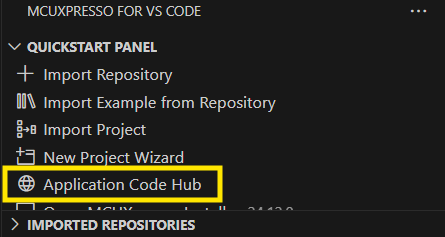
The ACH (Application Code Hub) view can be accessed by clicking on its entry in the Quickstart Panel.
Searching and filtering results
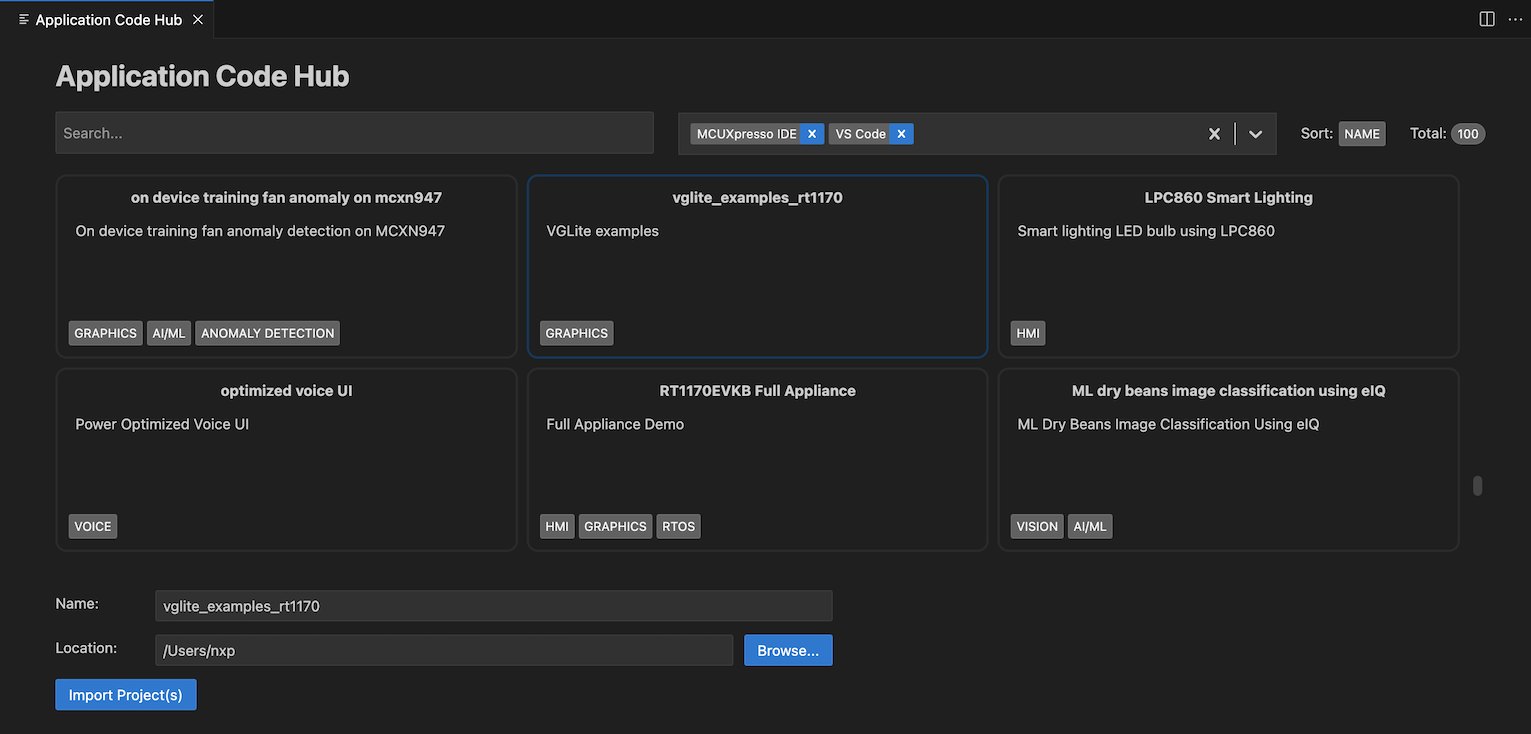
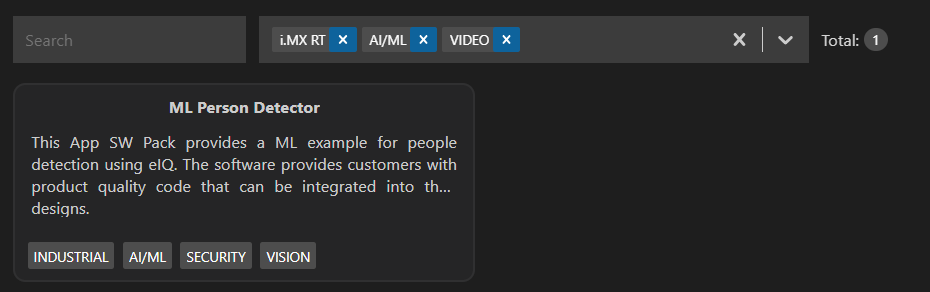
When opening the view, the middle section of the window will be populated with all of the available software repositories for MCUXpresso IDE and VS Code. The total amount is displayed in the right of the toolbar, alongside the Search and Filter field.
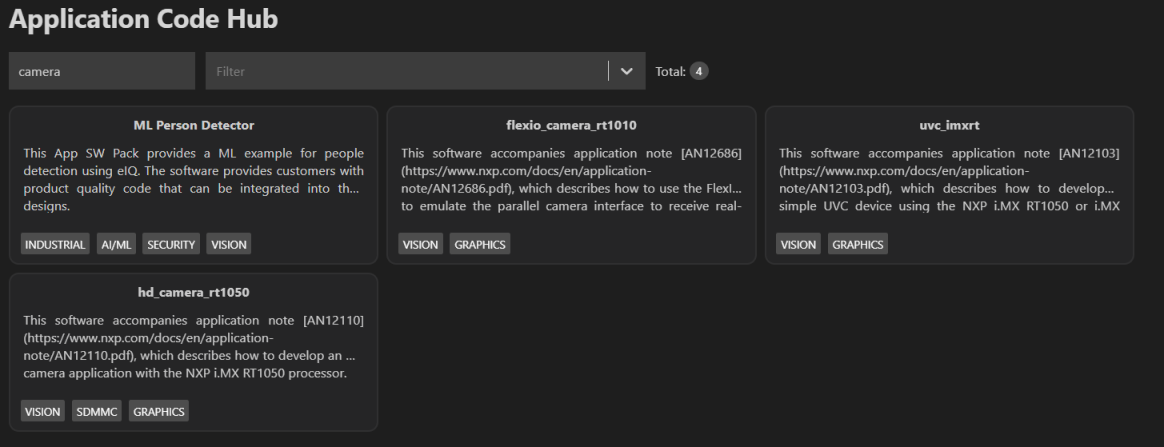
It is possible to search by typing into the Search field, and the results will narrow down to those that match the given query.
It is also possible to filter applications and projects by device family, categories, toolchains, used peripherals and application types. Multiple can be selected at the same time, and the result of the filter operation will be the projects that match all of the given criteria.
Cloning and importing an application
After searching for a suitable repository to clone, you can click on it to select it. Doing so will open the respective project’s description on the right side of the screen.
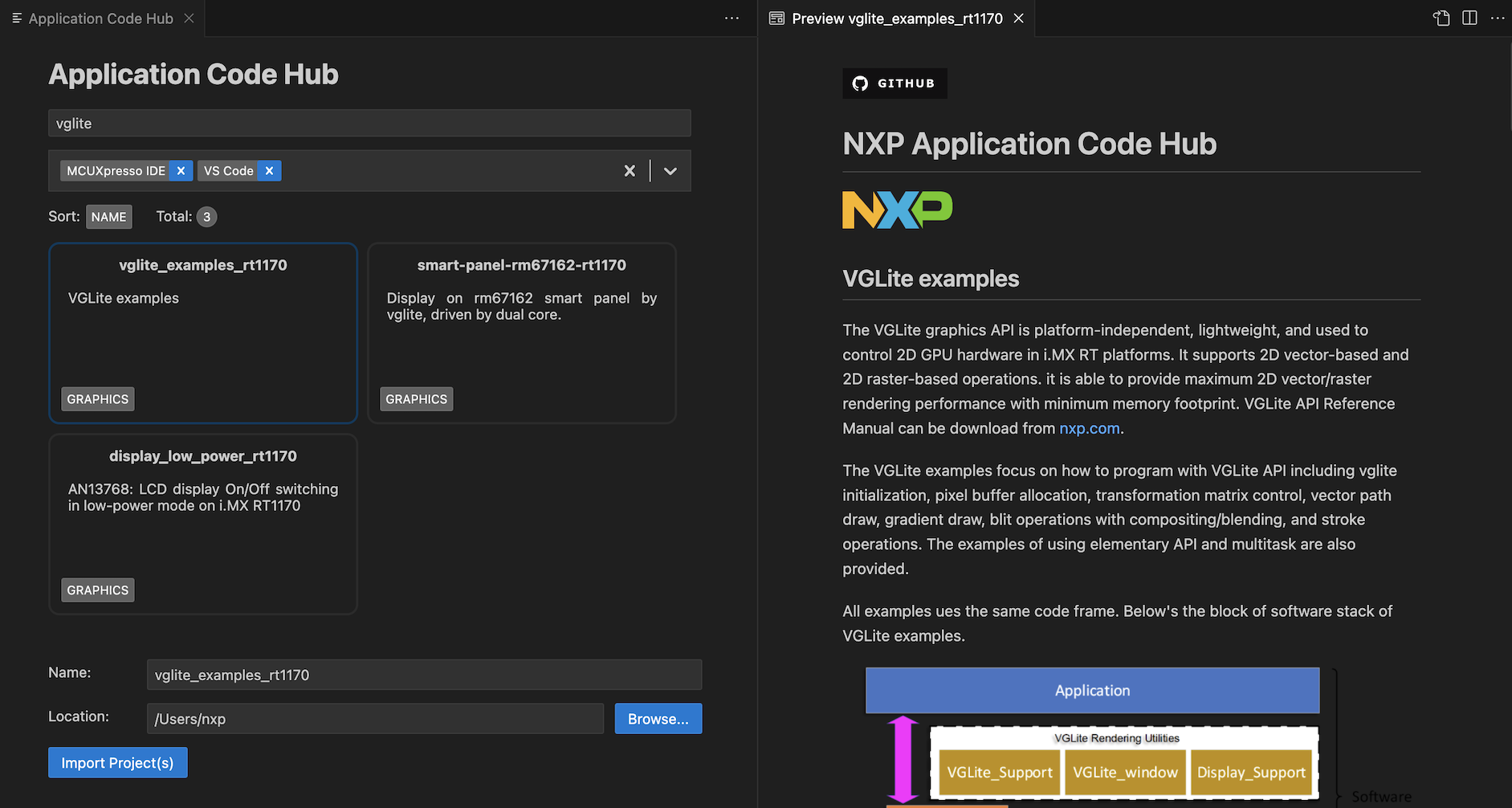
The description is a Markdown file and contains relevant information regarding the selected repository.
After selecting the desired application and its destination folder, click Import Project(s) to initiate cloning and importing of the application. For details about the Git cloning process, inspect the Terminals view, the terminal instance associated to the requested application.
When dealing with SSH-based URLs, MCUXpresso for VS Code will also attempt to start the default SSH agent installed in your system. If this is the case, a new terminal will also be created in order to be able to inspect its output. When keys protected by passphrases are attempted to be loaded by the SSH agent, the extension identifies these cases and asks for your input. The inputs you provide are not stored by the extension, only passed to the standard input of the agent.
Once the repository is cloned, additional information is required:
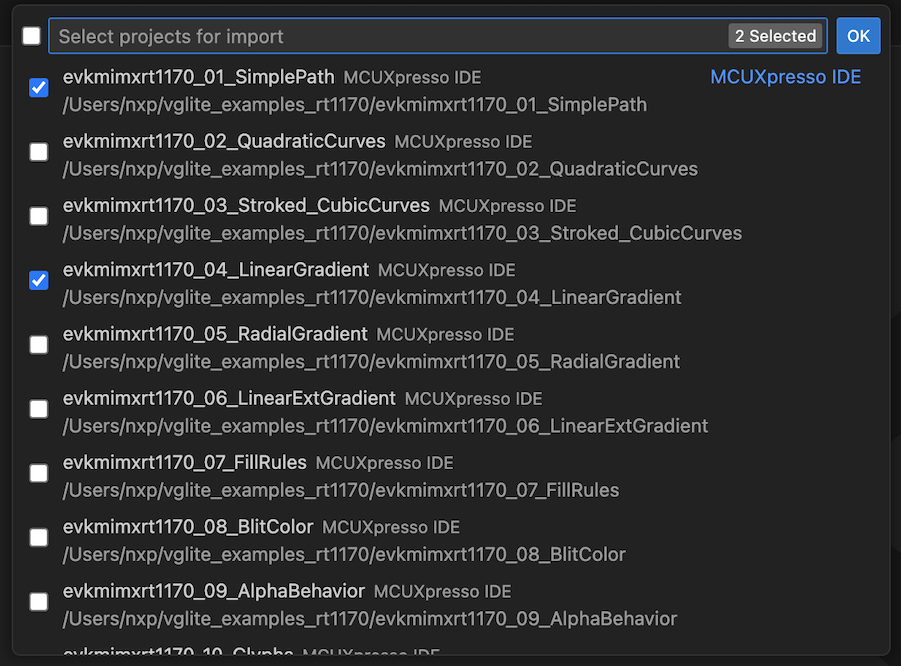
Select the project(s) to be imported:
Select the toolchain to be associated with the project(s):

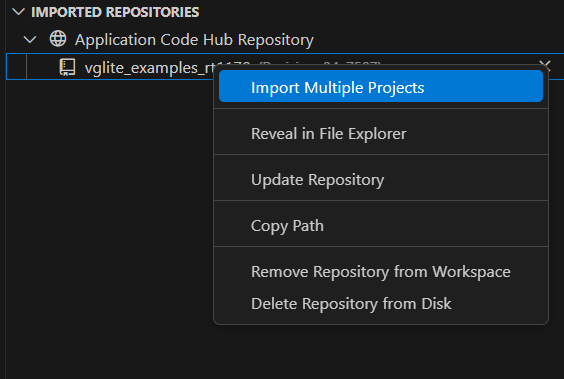
Importing Multiple Projects command
Once the application was successfully cloned you can see it under the Imported Repositories view. From there you can use the contextual menu to all the repository handling options.
Import multiple projects option allows importing projects from the repository into your workspace.