MCUXpresso SDK download
To configure and download the MCUXpresso SDK for the digital IO example building:
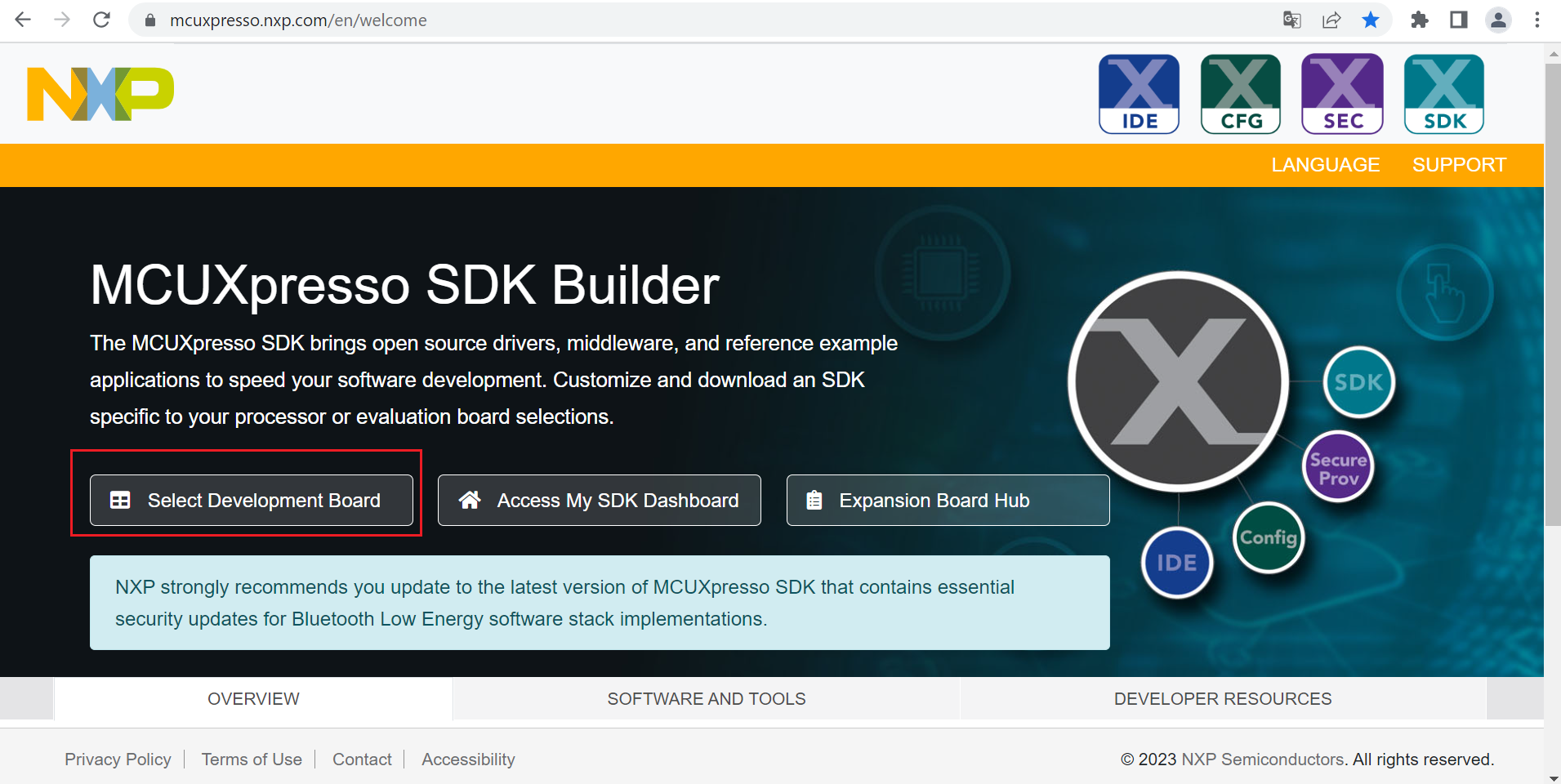
Click the link https://mcuxpresso.nxp.com/en/welcome and launch the MCUXpresso main page.
Click the Select Development Board button. See, Figure 1.
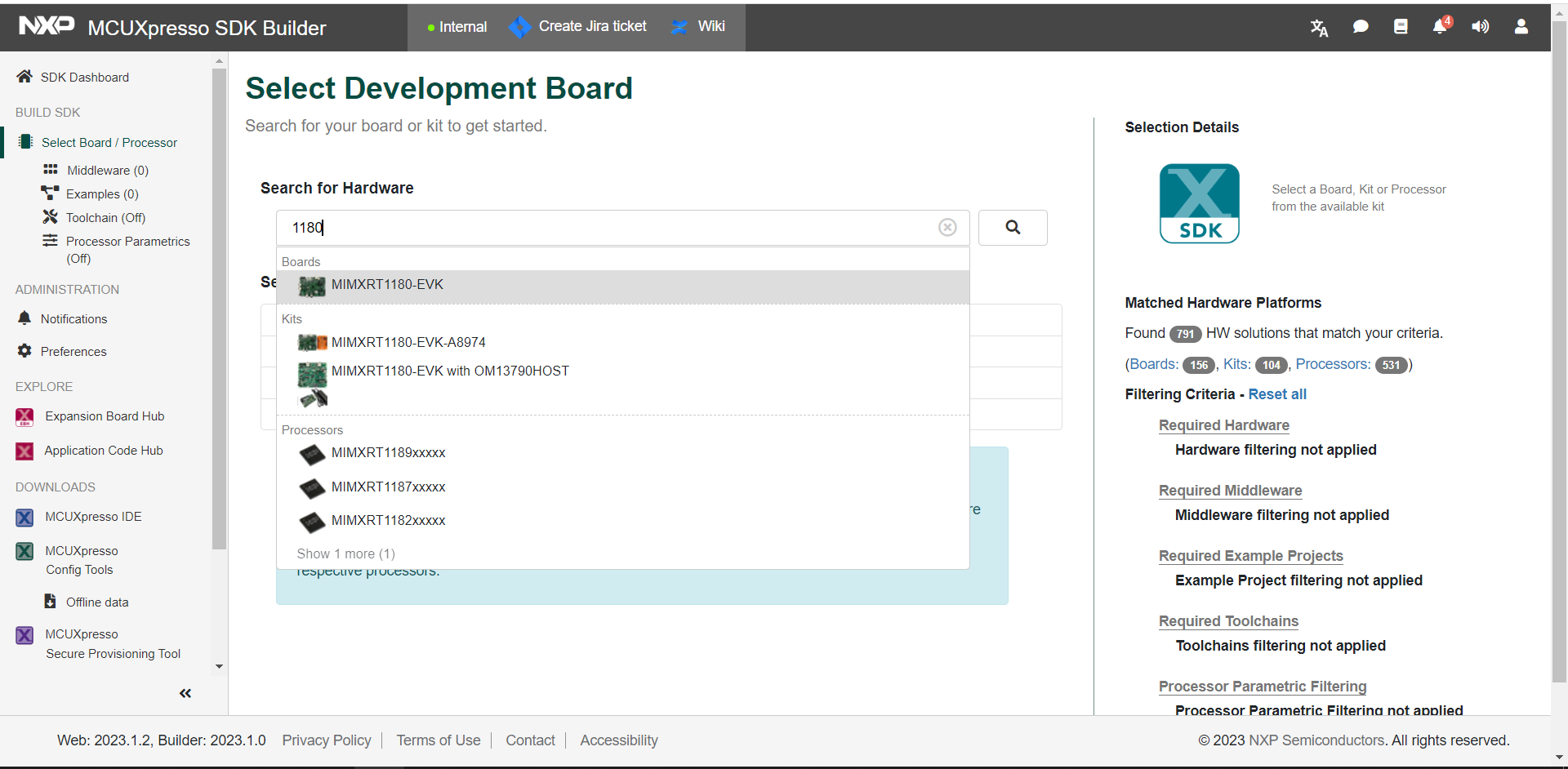
Type 1180 in the Search for Hardware field.
Select MIMXRT1180-EVK from the drop-down list. See, Figure 2.
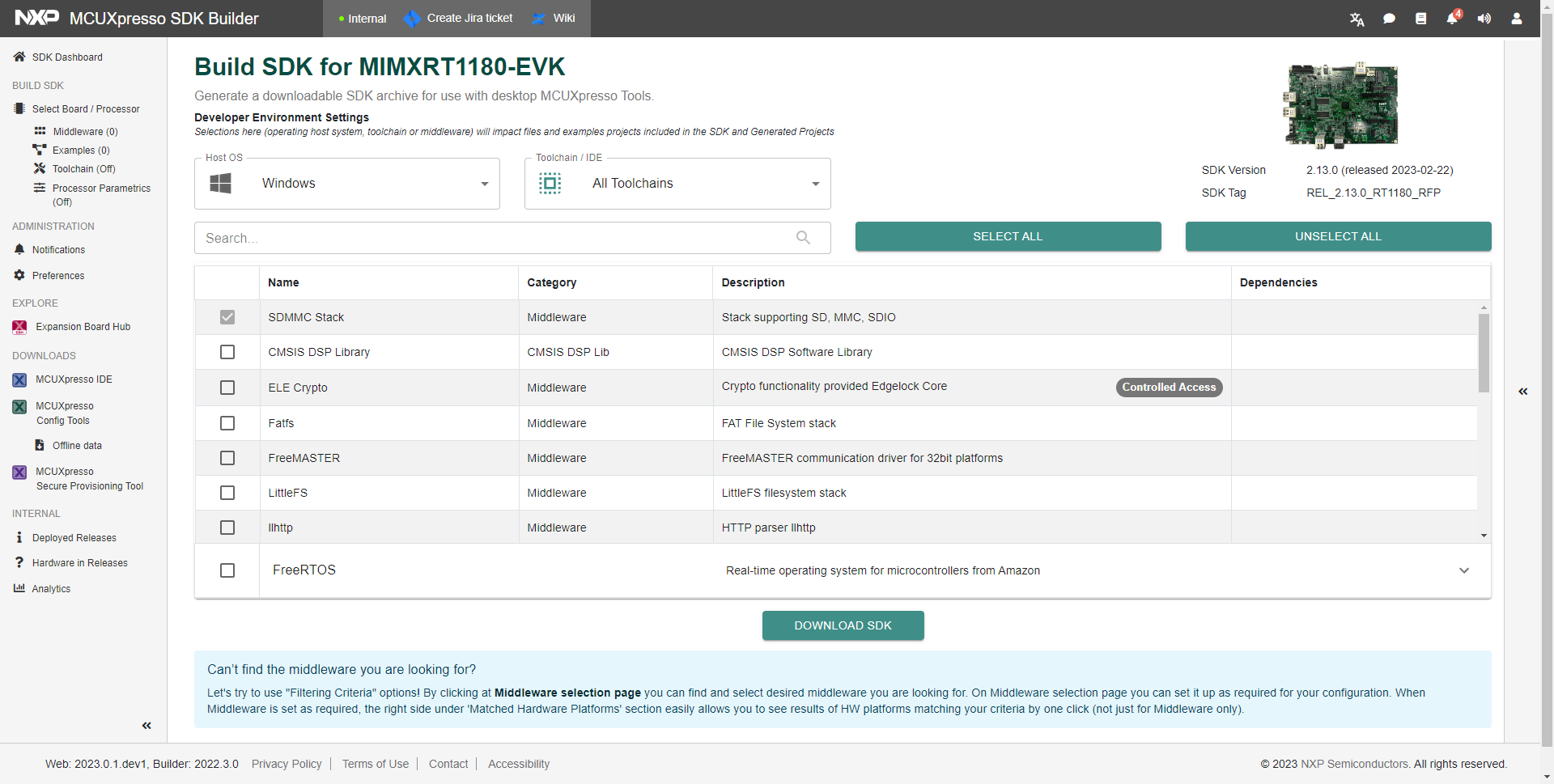
Select the SDK version from which the SDK will be generated. See, Figure 3.
Note: The SDK version in the image is for reference only. Ensure to download the latest SDK version.

Click the Build MCUXpresso SDK button.

Select the host operating system. See, Figure 5.

Select the Toolchain/IDE. See, Figure 6.

To select the components, click the Select All button.

To download the SDK, click the Download SDK button.
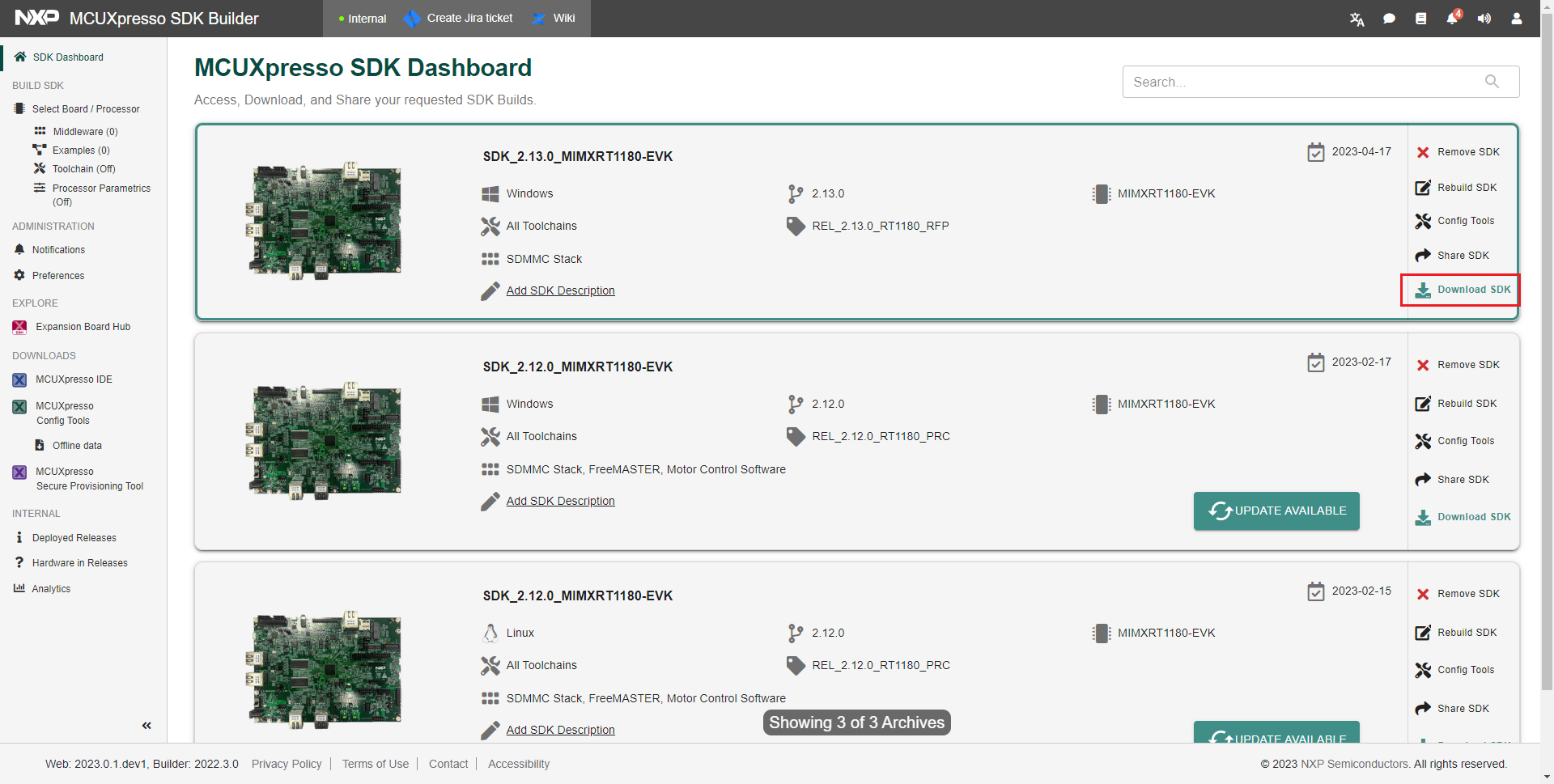
You can now access, download, and share your requested SDK builds. See, Figure 9.
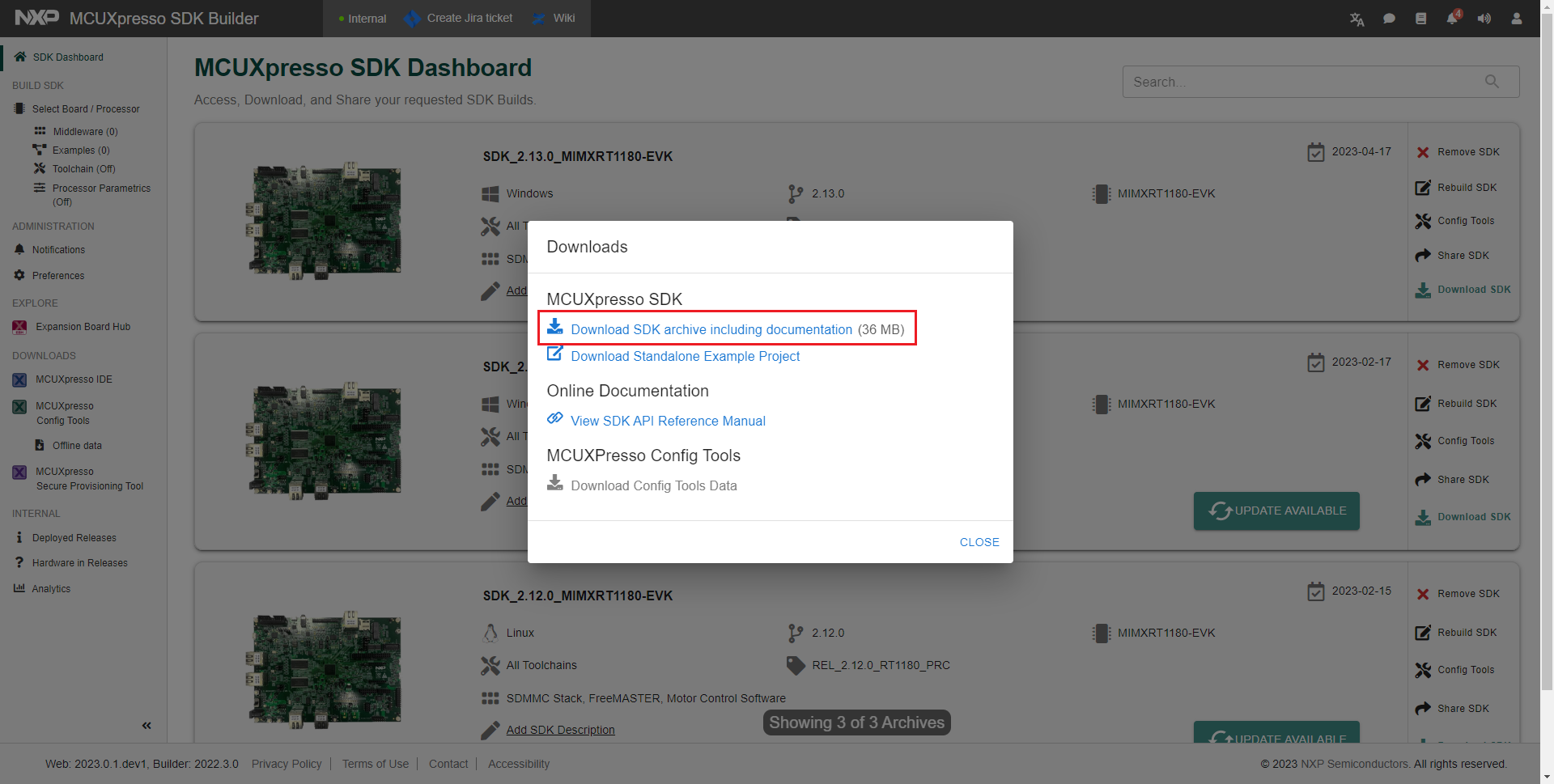
Click the Download SDK button.
Click the Download SDK archive including documentation link.
Read the end user license agreement (EULA).
Click the Agree link.

Wait until the build finishes and the download the SDK zip file.