TrustZone Examples on LPC55S6x and MCUXpresso SDK 24.12
The following are required to follow this chapter:
MCUXpresso for VS Code v25.12 or later
LPCXpresso 55S69 EVK development board
LPCXpresso 55S69 EVK version 24.12 SDK or later
A conceptual understanding of Arm TrustZone will help with understanding the features shown in this article. See the community article on TrustZone on the LPC55S6x.
Finally, familiarity with the use of MCUXpresso for VS Code and MCUXpresso SDK installation is assumed.
Overview
In essence, MCUs incorporating Arm TrustZone technology are able to provide system wide isolation between Secure (S) and Non Secure (NS) worlds. Within the Non Secure environment, access to certain operations, peripherals etc. are controlled from the Secure world. This behaviour is delivered by a single CPU with execution time being shared between these two worlds.
Developing for systems using TrustZone features presents a number of challenges in particular providing Secure World services for Non Secure application developers, debugging of both Secure and Non Secure worlds (projects) and delivering a usage model within the IDE that can be easily used and understood.
The examples supplied with the SDK contain both Secure and Non Secure linked projects and are configured within the IDE to demonstrate development from the point of view of both Secure and Non Secure development.
The documentation below will refer to two major development and debugging scenarios:
Development and debugging the Non Secure project while the Secure project can be seen as a ‘Black Box’ (or Bootloader) that provides a number of explicit secure operations.
Development and debugging both Secure and Non Secure projects.
Note: the LPC55S69 is a multicore MCU as in it contains two physical CPUs - numbered 0 and 1. In these examples all code is targeted at CPU 0, and the use of CPU 1 is outside the scope of this article.
Importing Example Project
First, ensure you have imported SDK version (at least) 24.12 for the LPCXpresso55S69 EVK board into MCUXpresso for VS Code. Once installed it will be visible within the Imported Repositories view and its version shown as below (either as GitHub repo or as a standalone SDK):

Note: you can install and use either a github repository or a github pack repository. For more details on each option please check on MCUXpresso SDK
Also, use MCUXpresso Installer to install at least ARM GNU toolchain component plus a Debug Probe software dedicated for your available debug probe (LinkServer, SEGGER J-Link, or PEmicro).
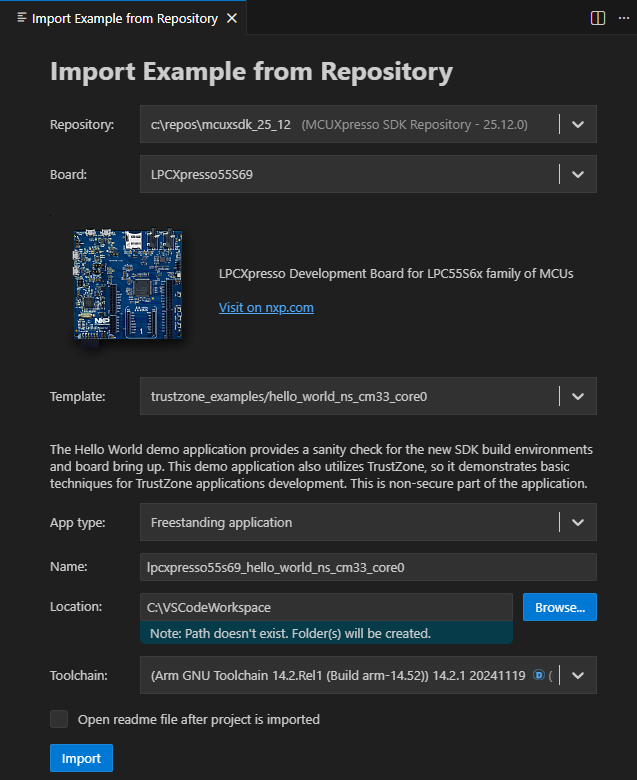
From the Quickstart Panel, select the ‘Import Example from Repository’, then select the imported repository, toolchain, and the LPCXpresso55S69 board.
On “Choose a template” section, type “trustzone*hello_world”, the filter will display only the examples containing the words “trustzone” and “hello_world” and select the filtered selection.
Once imported, the Projects view contains the chosen project.

Project Settings Exploration
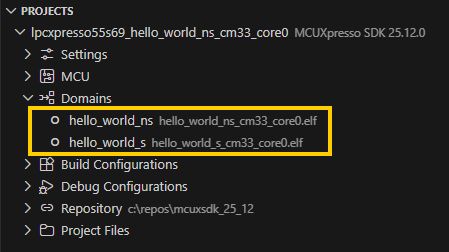
TrustZone application is composed by two projects, one for Secure world, one for Non-Secure world. In newer SDKs (v24.12 or newer), only one project is loaded, the other project is linked using sysbuild mechanism (similar like multicore, library projects, etc.). Build the project. Once built, the two projects are visible as “Domains”, each domain representing one project in the sysbuild system.
Memory Configuration
Apart from the veneer table, these projects can be considered as separate entities and must have non overlapping memory regions.
Secure: A feature of the address space security is that the setting of address bit 28 signifies a secure location (odd numbers in the most significant nibble).
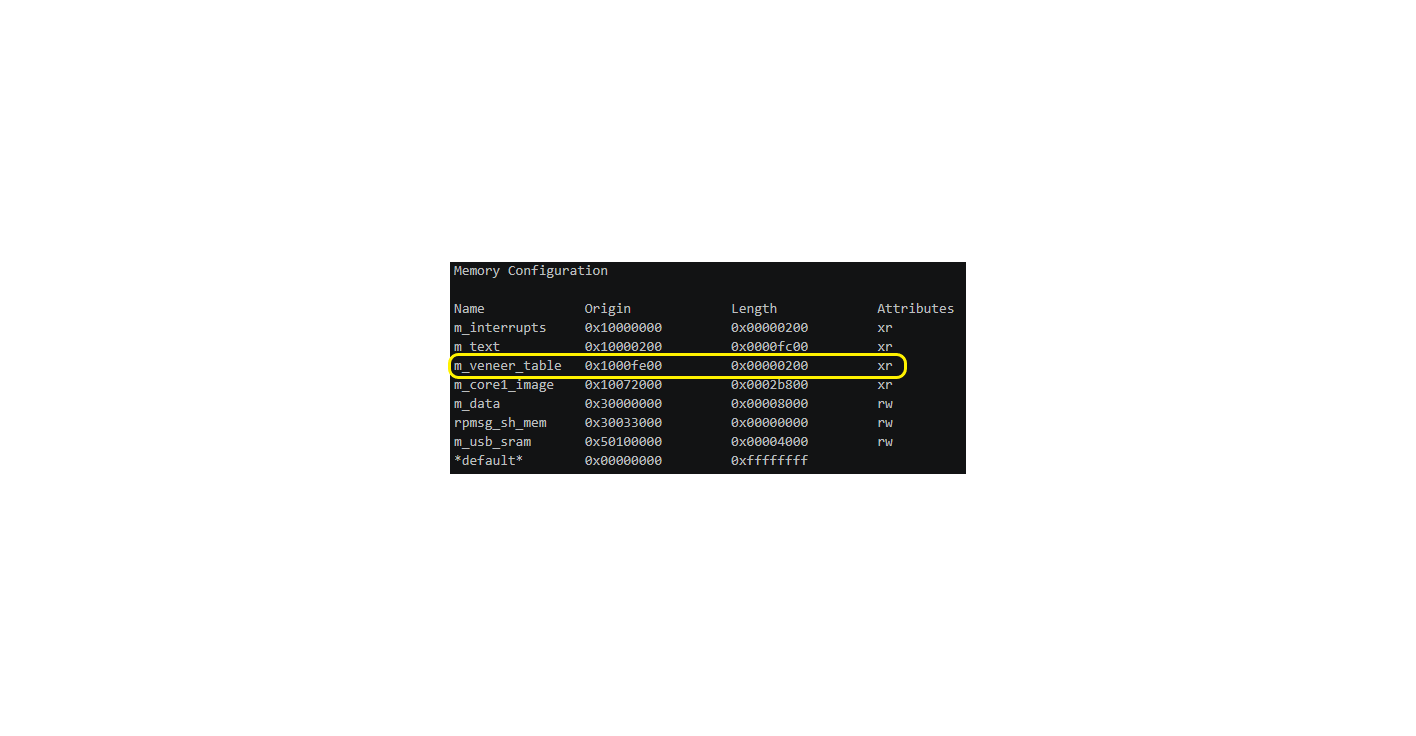
The SG_veneer_table block at 0x1000FE00 is used for code to provide a gateway to (certain) secure functions and inherits the same flash driver.
Check the output.map file to see sections:
Non Secure: For these addresses, bit 28 is not set signifying non secure locations (even numbers in the most significant nibble)
Project Properties
TrustZone capable MCUs have a number of dedicated Project Properties primarily addressing linkage and debug.
A project set to be Secure will generate an additional Secure Gateway Import Library (in project directory -> hello_world_s/CmakeLists.txt).

Building the Example Projects
Building the examples is as simple as selecting the project and clicking Build icon. Be aware that building the Non Secure project will force the Secure project to build first to provide linkage to the Secure Gateway library. This is assured by the sysbuild mechanism, which provide a single “build” action for all chained projects.

Assuming neither project has been built before, building the Non Secure Hello World project will result in the generation of both Secure and Non Secure .elf(s) and generate the output as below:
[25/25] Linking C executable hello_world_ns_cm33_core0.elf
Memory region         Used Size  Region Size  %age Used
    m_interrupts:         304 B        512 B     59.38%
          m_text:        4848 B     400896 B      1.21%
   m_core1_image:           0 B       174 KB      0.00%
          m_data:        3200 B       170 KB      1.84%
    rpmsg_sh_mem:           0 B          0 B
      m_usb_sram:           0 B        16 KB      0.00%
[28/28] Linking C executable hello_world_s_cm33_core0.elf
Memory region         Used Size  Region Size  %age Used
    m_interrupts:         304 B        512 B     59.38%
          m_text:       15952 B        63 KB     24.73%
  m_veneer_table:          32 B        512 B      6.25%
   m_core1_image:           0 B       174 KB      0.00%
          m_data:        3208 B        32 KB      9.79%
    rpmsg_sh_mem:           0 B          0 B
      m_usb_sram:           0 B        16 KB      0.00%
Debugging the Example Projects
Debugging the Non Secure Project
The initial flow is intended to show debugging into the Non Secure world.
Therefore, begin by flashing first the Secure image.
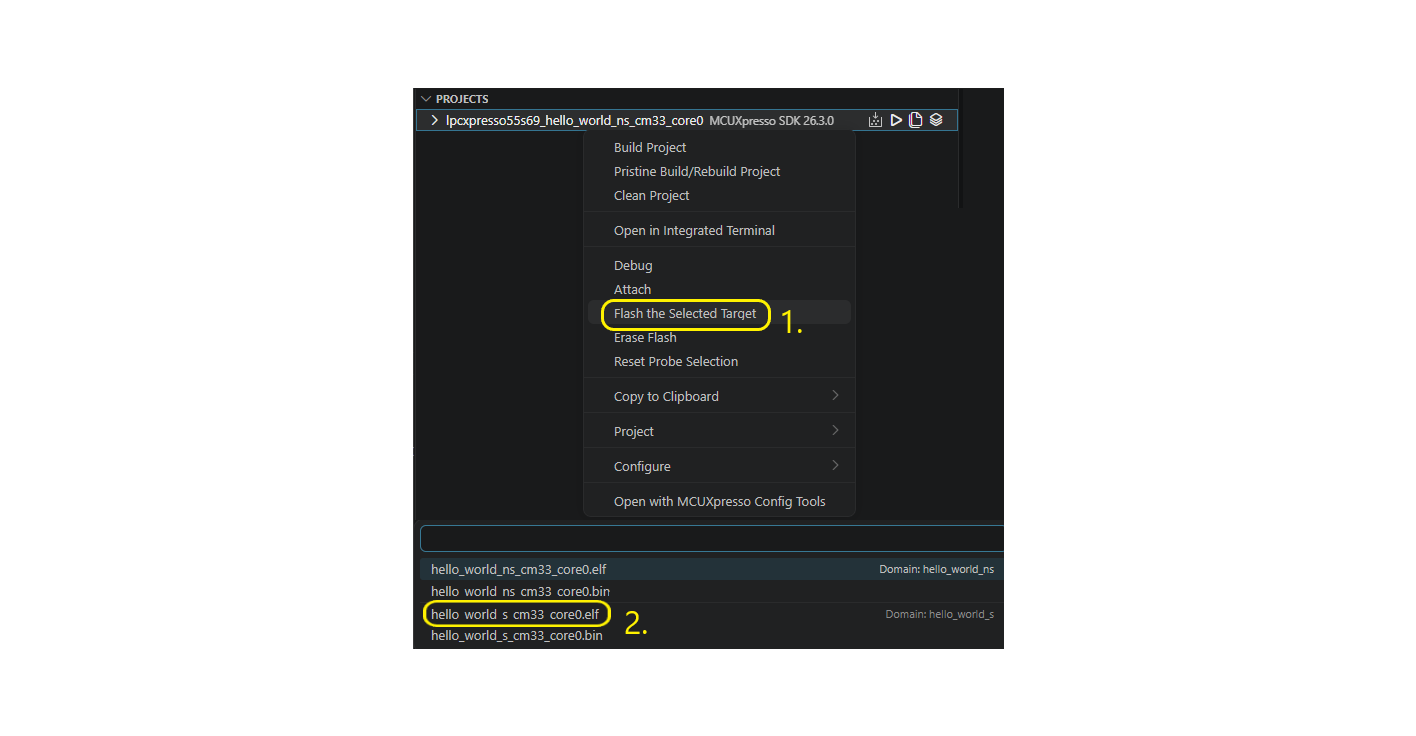
Then, select Debug option.

Once programming is complete, you should arrive at the default Breakpoint at main() within the Non Secure world as below:
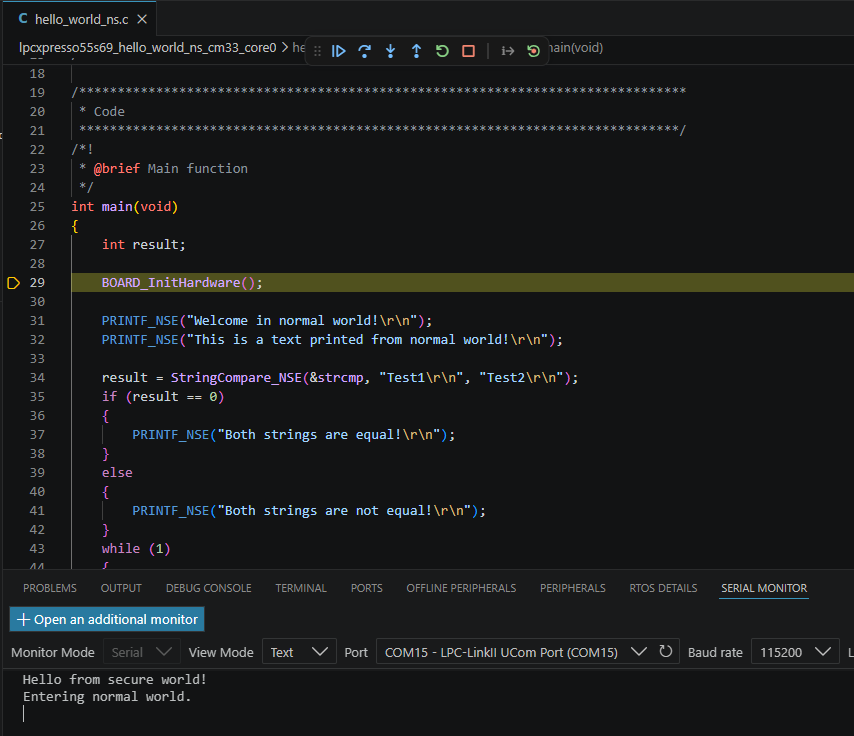
You can start now debugging through the Non Secure application.
Debugging both the Non Secure and Secure Projects
If you want to flash and debug through both Secure and Non Secure images, you have to flash both images but also to load debug symbols for both. While in the previous model you just flashed the Secure image, now, you need to also load its debug symbols so you can stop at main() in Secure world, put breakpoints, alternatively jump from Secure to Non Secure world and back, etc.
First step, in main Non Secure project, open Settings -> launch.json file. Add options to download the Secure image and also load debug symbol files.
"extraLoadFiles": ["${workspaceFolder}/debug/hello_world_s/hello_world_s_cm33_core0.elf"],
"extraSymbolFiles":["${workspaceFolder}/debug/hello_world_s/hello_world_s_cm33_core0.elf"],
Note In this configuration, no separate flash action is necessary for flashing the secure image. You can use this method (without extraSymbolFiles option) as alternative to the flow shown at Debugging the Non Secure Project
Choose now Debug option. Once programming is complete, you should arrive at the default Breakpoint at main() within the Secure world as below:
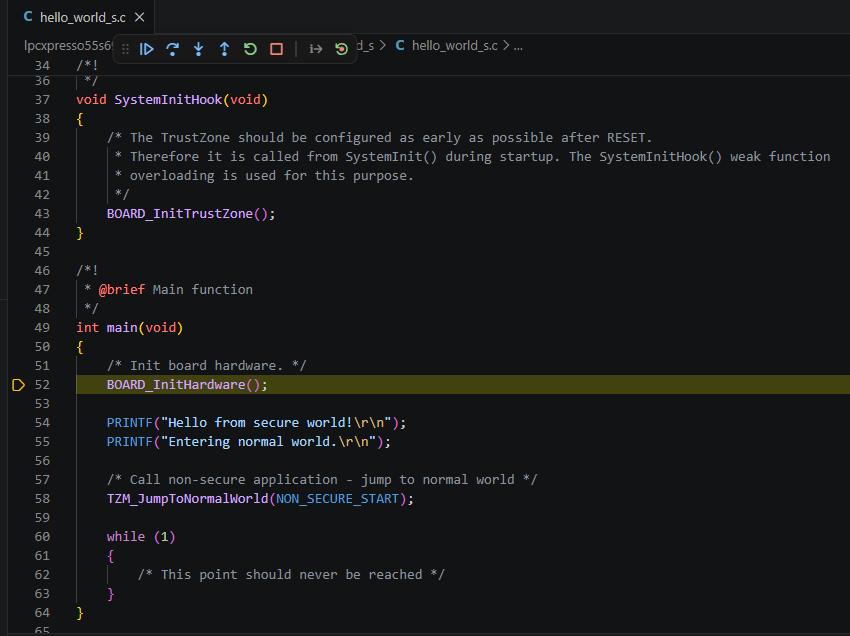
Put a breakpoint on line 58, where the call TZM_JumpToNormalWorld to normal world is. This project will first perform some board/MCU initialisation and print a greeting (as below).
Next, TZM_JumpToNormalWorld function will setup the environment for the method shown at [Debugging the Non Secure Project]
Note: this step is necessary because the non secure project is not run from reset, so it cannot rely on the default hardware behaviour for initialisation of Stack, Interrupt handlers etc. This is essentially the same operation that a bootloader would perform.
Note: since the non secure project is not debugged directly, it will have no default breakpoint at its
main()function. To explore the execution, it is recommended to open the Non Secure projects Source -> hello_world_ns.c and manually set a breakpoint, then execute to it, as shown below:
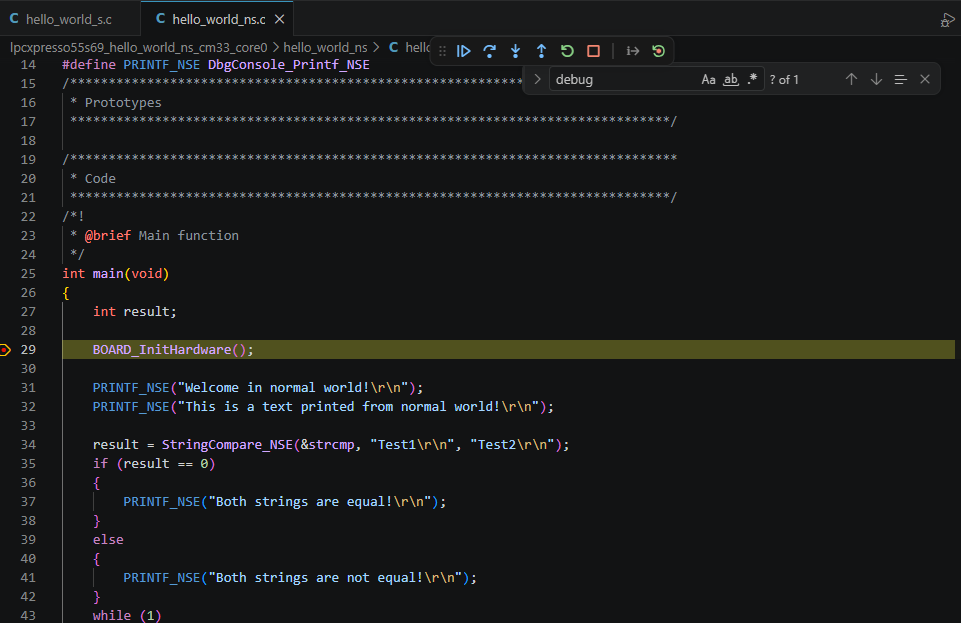
Finally, click Continue button to run this example.
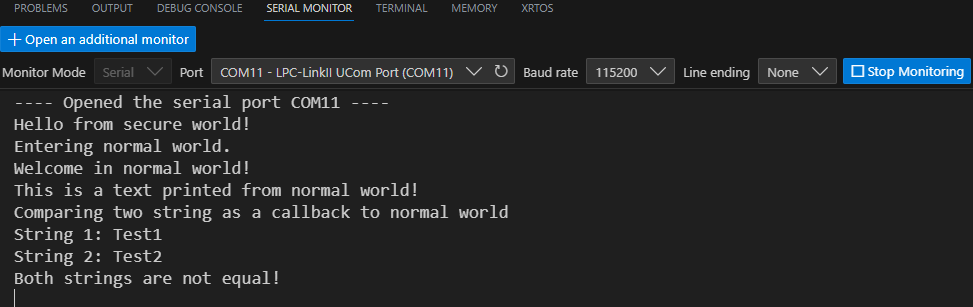
Note: the significance of this example is that the String Compare operation was supplied to the Non Secure project by the Secure project and accessed securely via the Non Secure Entry (NSE).
This step concludes the expected use of this example.
If Debug operations fail…
It is possible to program an image into flash that when run prevents further debug operations succeeding. Should this occur, please follow the steps below:
Terminate debug session
Disconnect the USB cable from your board to remove power
Place a jumper on the ISP header (J10) - this will prevent the board booting the image in flash by forcing the MCU to enter ISP mode
Now reconnect the USB cable to Debug Link connector (P6)
Select Flash Programmer (from Quickstart Panel or directly from the Debug Probes view) - and use this to mass erase the flash
If this succeeds, then:
Disconnect the USB cable from your board
Remove the jumper on the ISP header (J10)
Now reconnect the USB cable to Debug Link connector (P6)
Try starting a debug session for your project again using the Debug button from projects’ toolbar. If this problem occurs as part of application development, try programming a known working example to ensure there are no underlying problems.