Debugging Linux apps with VS Code: a step-by-step guide
Note
This article is reproduced with permission. Original article by Erich Styger at MCU on Eclipse.
Linux application debug is a common use case even in the Embedded development world, and this document aims to describe how to easily achieve this using VS Code.
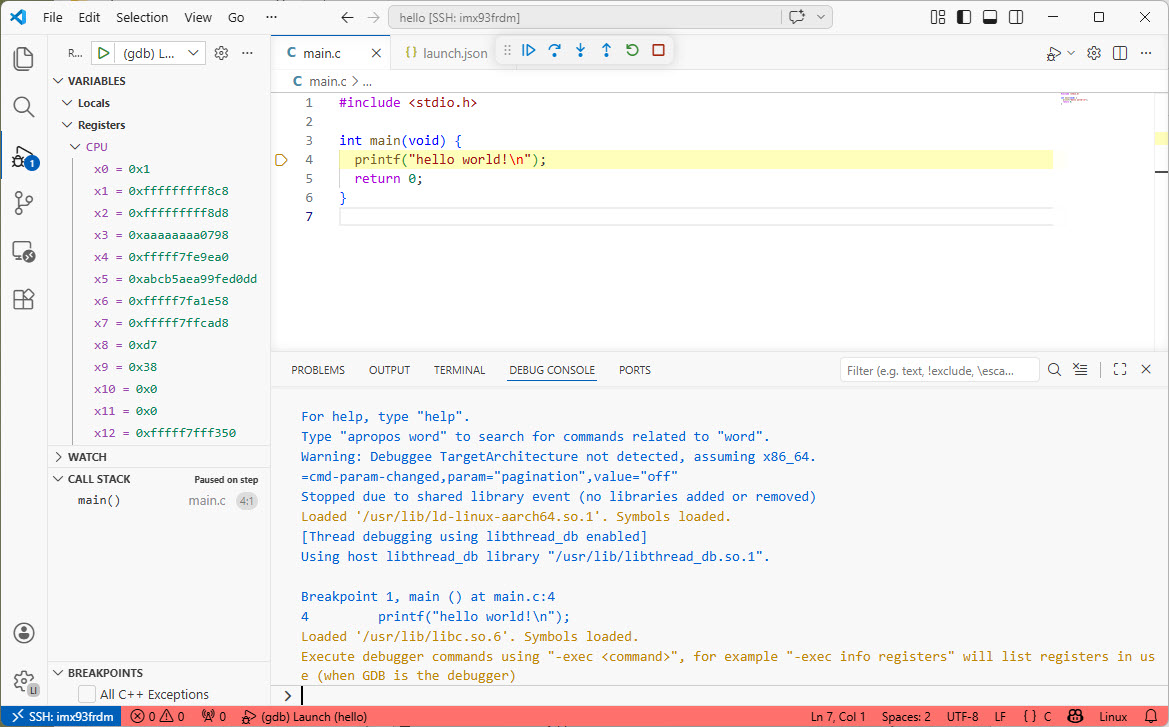
Debugging Linux application with VS Code over SSH
This article shows how to use VS Code to debug a Linux application. You can use this technique, for example, with a Raspberry Pi. Or, for example, the NXP i.MX93, which I am using in this article.
Outline
In this tutorial, I show how one can debug a user application running on a Linux-embedded system. For this purpose, I am using an SSH connection to the remote machine.
Microsoft has built SSH tunneling support into VS Code. This support is what we are going to use:
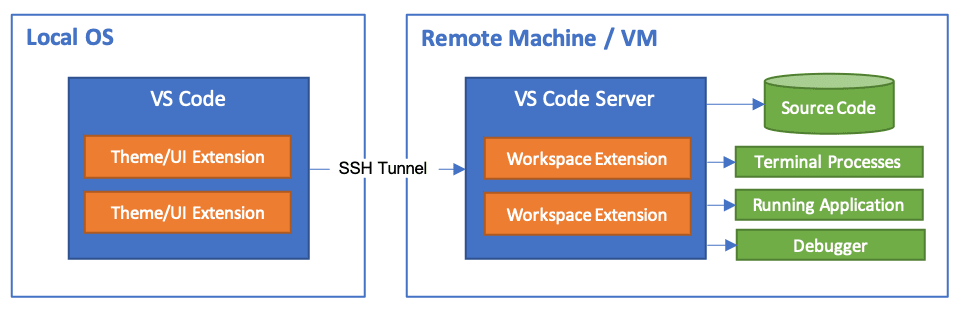
Remote Development with SSH (Source: Microsoft)
The technology uses an SSH tunnel with a VS Code server running on the target system. This setup makes remote development and debugging more productive.
In this article, I go through a basic example, and describe how to configure and use VS Code. Finally, I am debugging a remote Linux user-space application with VS Code over an SSH connection.
Preconditions
You need:
VS Code installed on the host (https://code.visualstudio.com/).
Remote Development extension pack from Microsoft installed in VS Code.
An embedded Linux system with toolchain installed. For example, the NXP i.MX93 or a Raspberry Pi.
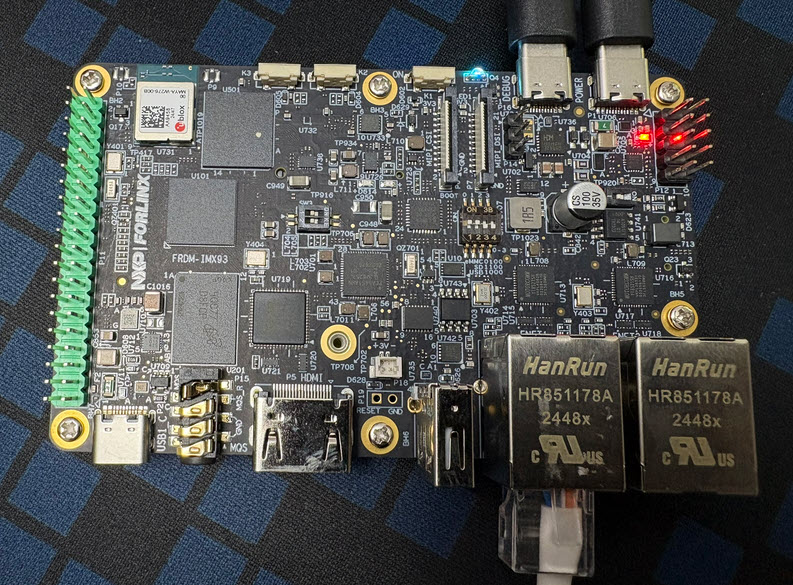
NXP i.MX93 SBC board
Hello World
Next, let us create a Hello World program on the i.MX93.
Create a directory:
$ mkdir hello
Change into that directory:
$ cd hello
Create a Hello World source file:
$ nano main.c
Then add the following source code:
#include <stdio.h>

int main(void) {
  printf("hello world!\n");
  return 0;
}
Exit the nano editor with CTRL+X.
Compile the file:
$ gcc main.c
Then run the program:
$ ./a.out
The expected output is:
hello world!
Congratulations! The Hello World program is running on the board.
VS Code
In VS Code, ensure that you have the Remote Development extension pack installed.
Press CTRL+SHIFT+P and choose Remote SSH: Connect Current Window to Host …
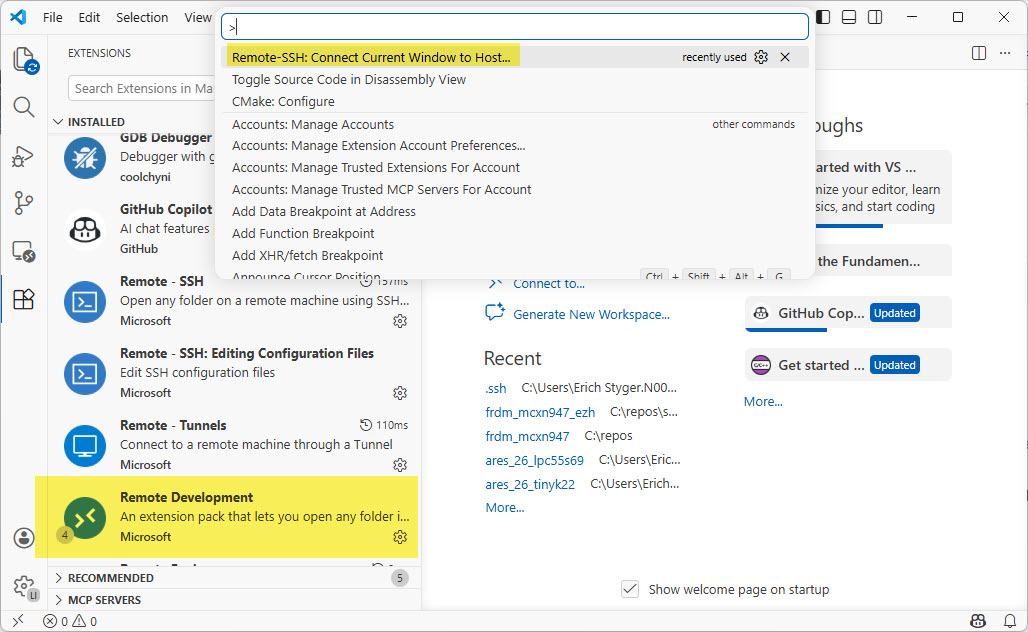
Remote SSH: Connect current window to host
Next, specify which host to connect to. Use the following format as you would use for a normal SSH connection:
<user>@<host>

Connecting with SSH
Next, select the host type to connect to (Linux):
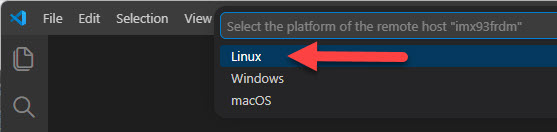
Selecting target host system
Enter your login password when prompted.
Then VS Code installs its server component on the Linux side. This installation can take a few minutes.

Downloading VS Code Server
Finally, the left status bar message shows that the connection is established.
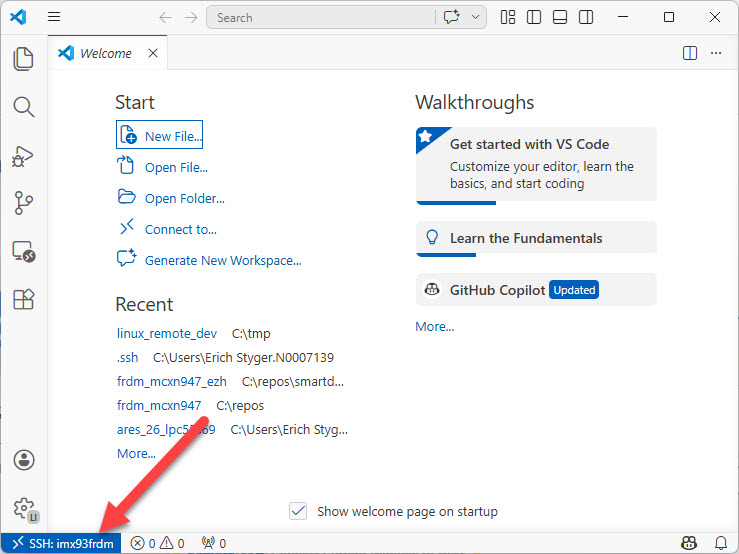
Connected with SSH
With the SSH connection, you can open and browse folders on the remote machine.
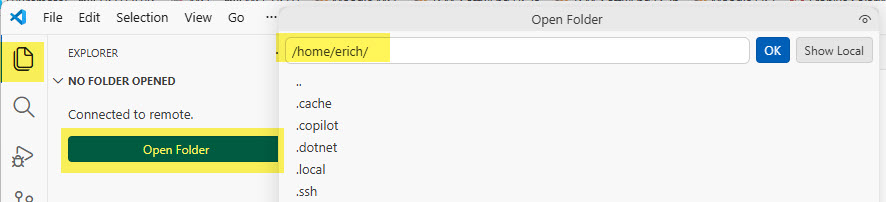
Open Folder on remote machine
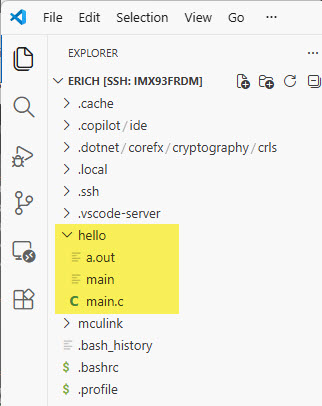
Folders on remote machine
Open Project Directory
As on the host, you can open the project folder (the hello directory) using File > Open Folder:
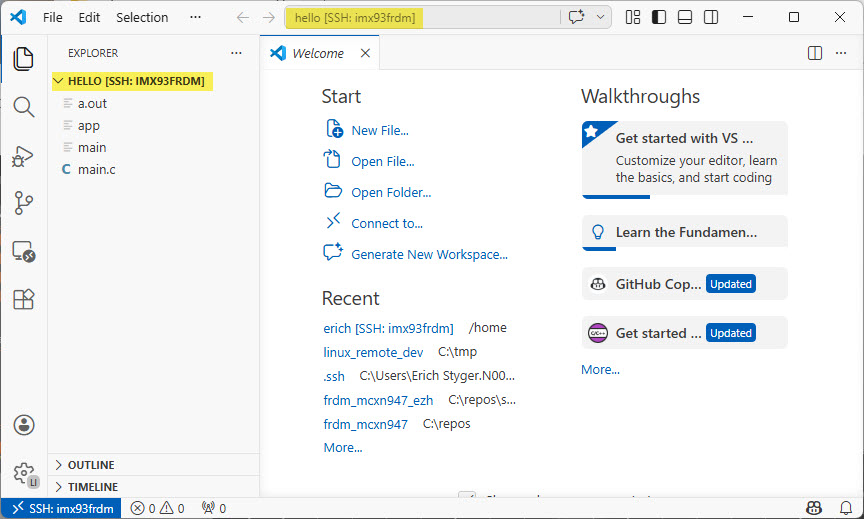
Open Project Directory
Building with Debug Information
To debug the binary on the target, use the -ggdb option to include debug information:
$ gcc main.c -ggdb -o app
Use the VS Code Terminal view for this step:
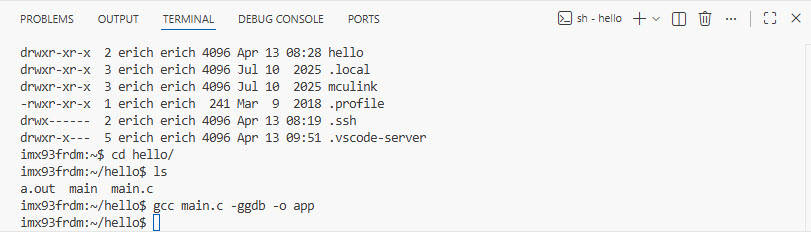
VS Code Terminal View with SSH
Debugging
Open the source file in the editor:
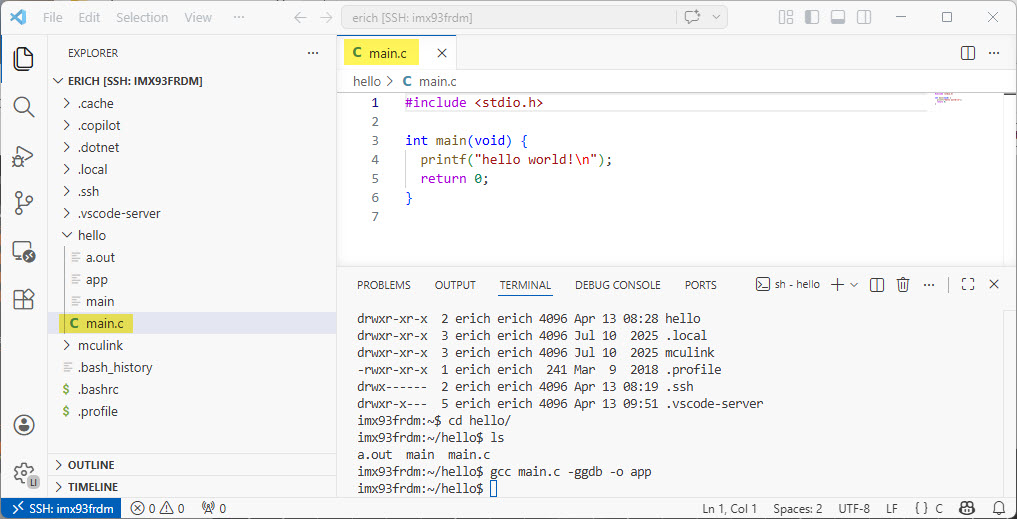
Opening main.c file
Opening the file allows the extension to automatically detect the programming language and any extensions needed.
In the debug pane, create a launch.json file:
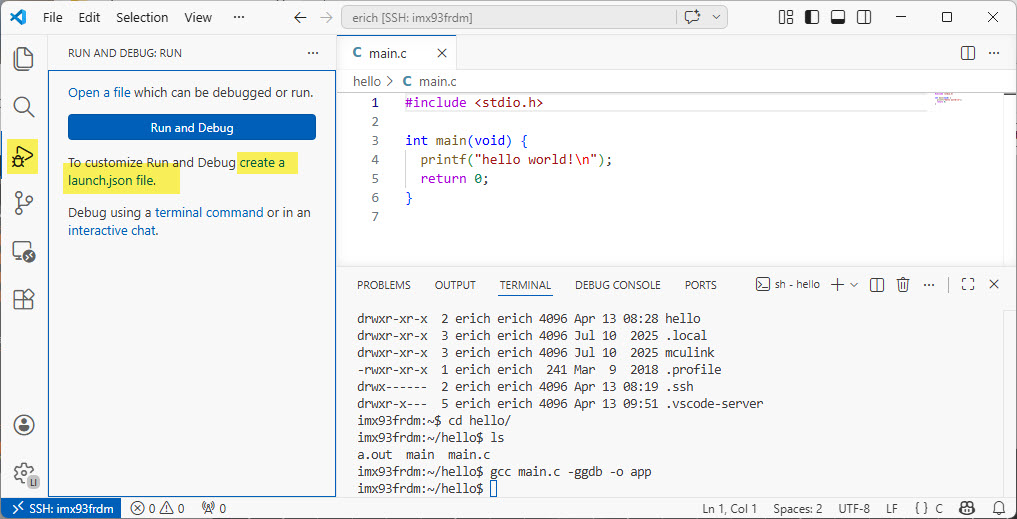
Debug pane to create a launch.json file
Use GDB for debugging. If it is not already installed, install the C/C++ extension:
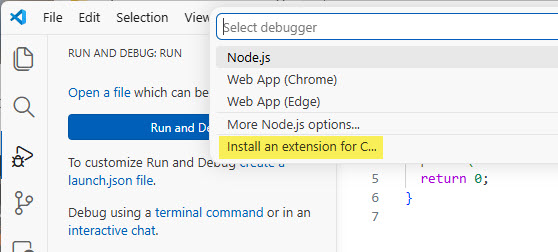
Install an extension for C
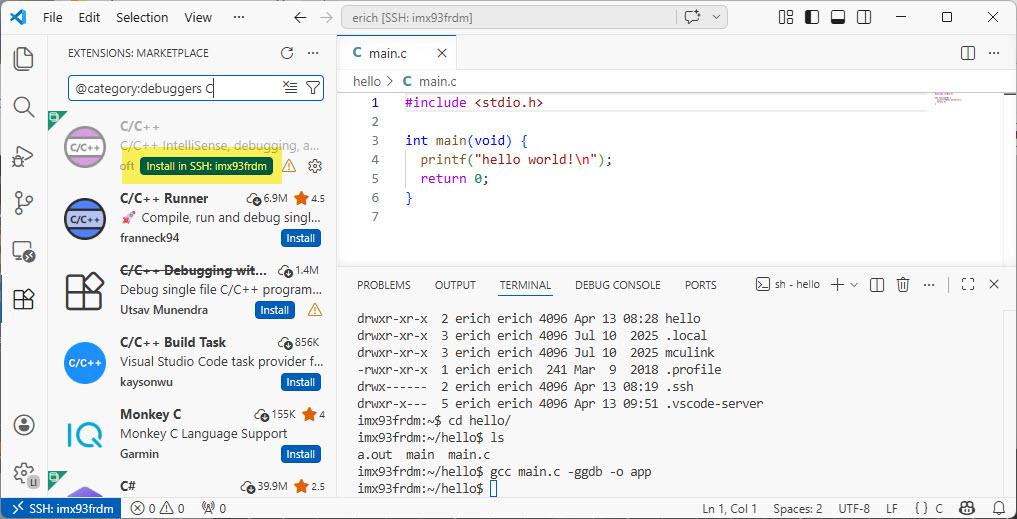
Install C/C++ in SSH
If asked, select a C/C++ (GDB) Launch configuration:
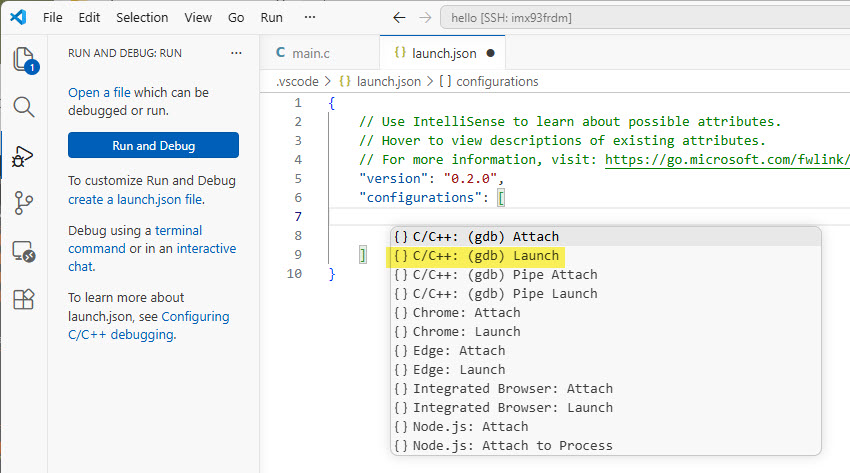
C/C++ (GDB) launch
This selection creates the following launch configuration:
{
    // Use IntelliSense to learn about possible attributes.
    // Hover to view descriptions of existing attributes.
    // For more information, visit: https://go.microsoft.com/fwlink/?linkid=830387
    "version": "0.2.0",
    "configurations": [
        {
            "name": "(gdb) Launch",
            "type": "cppdbg",
            "request": "launch",
            "program": "enter program name, for example ${workspaceFolder}/a.out",
            "args": [],
            "stopAtEntry": false,
            "cwd": "${fileDirname}",
            "environment": [],
            "externalConsole": false,
            "MIMode": "gdb",
            "setupCommands": [
                {
                    "description": "Enable pretty-printing for gdb",
                    "text": "-enable-pretty-printing",
                    "ignoreFailures": true
                },
                {
                    "description": "Set Disassembly Flavor to Intel",
                    "text": "-gdb-set disassembly-flavor intel",
                    "ignoreFailures": true
                }
            ]
        }
    ]
}
Update launch.json
Update the file in two places:
"program": "${workspaceFolder}/app",
and
"stopAtEntry": true,
Then save the file.
Start Debugging
Now, press Debug:
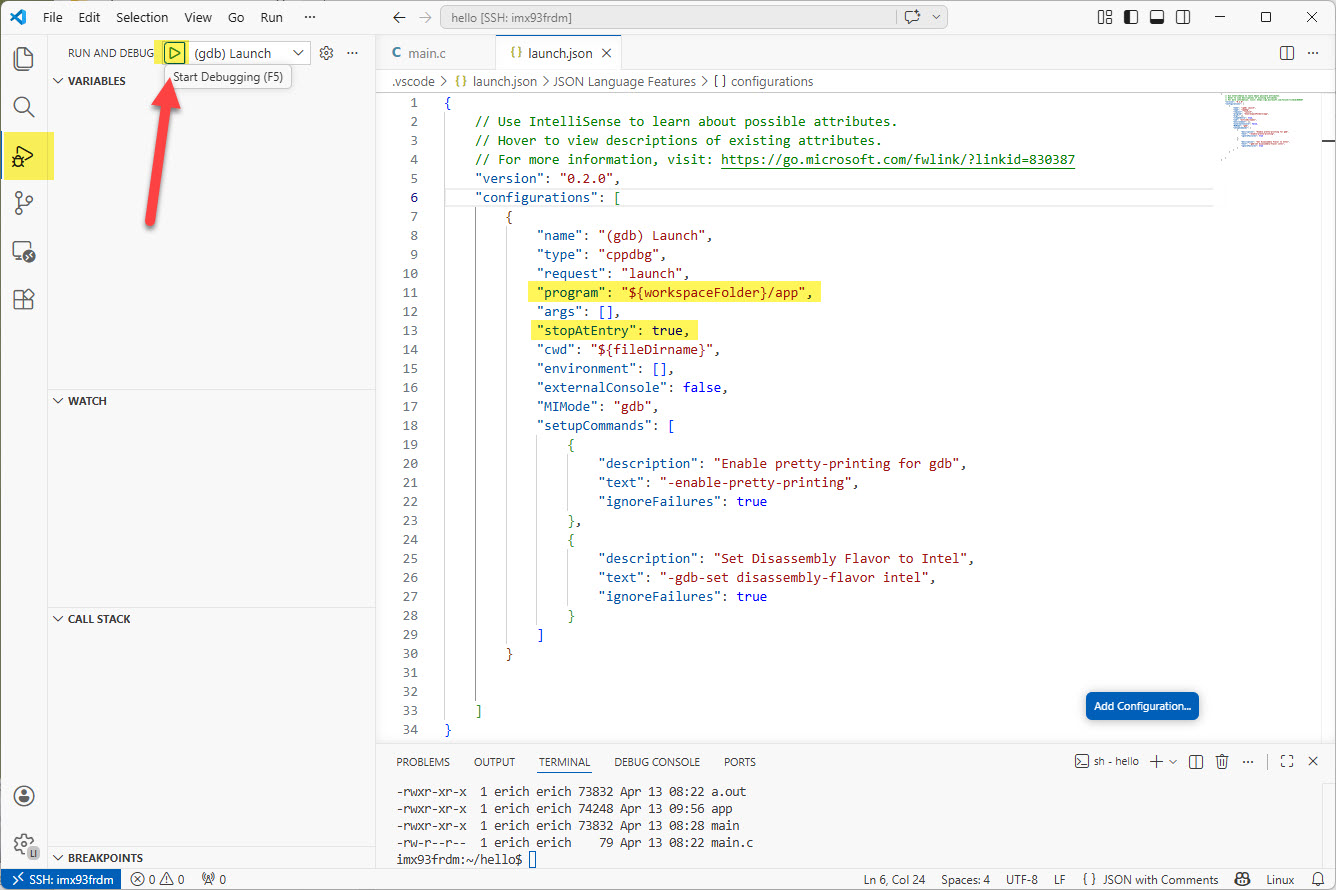
Start debugging in VS Code
Congratulations!
Debugging Linux application with VS Code over SSH
Summary
Debugging a Linux user-space application over SSH is straightforward, thanks to the built-in remote SSH support in VS Code. A similar setup works with Eclipse, but VS Code is much easier and more productive to use. A raw command-line GDB client-server connection is also an option. However, for most debugging tasks, a GUI-based approach is much more efficient. VS Code makes the most sense for this workflow.