Introduction
Config Tools for i.MX is a software tool that helps guide users from first evaluation to production software development. This document describes how to install the Config Tools for i.MX software.
Config Tools for i.MX is available offline (local) installed on the host machine for pin routing configuration, validation and code generation, including pin functional/electrical properties, power rails, and run-time functions.
Config Tools for i.MX is intended for general use and aims to help hardware designers, software engineers, embedded engineers, and field application engineers (FAEs) and consists of several tools.
The Pins tool main features are:
Graphical views to create and change pins configuration
Creation of C source code and Device Tree snippet (DTS) for device initialization
Package with all pins and routable peripherals
Registers with initialization values
The DDR tool main features are:
Graphical view to display and change basic DDR attributes, such as memory type, frequency, or number of channels.
Graphical view to test and validate the DDR settings.
Note: If the MacOS is set to Traditional Chinese, Config Tools for i.MX starts in English and not Chinese. This is intended.
Minimum system requirements
The following lists the minimum system requirements to install and run the software:
One of the following graphical operating systems:
Microsoft Windows 10 (64-bit)
Ubuntu 22.04 LTS
Note: Linux-hosted variants of tools are distributed on Linux as 64-bit binaries, which may not work on 32-bit systems.
Supported desktop environments: GNOME
Mac OS X (12.x)
4 GB RAM
Display with resolution 1366 x 768
Internet connection for dynamic download from processor database
Supported processors
Config Tools for i.MX is installed with limited processor data and device support. You can download additional supported devices later.
Note: Internet connection is required to install data for supported processors.
Limitations
Refer to MCUXpresso Configuration Tools for i.MX Application Processors Release Notes document MCUXCTIMXRN to see the limitations.
Installation
An ‘Offline’ installer is available for Config Tools for i.MX.
This installer file includes all the files required during the setup and does not need an internet connection for installation to complete. You can use this method for slow network connections or for installing the software on multiple machines.
The missing device information files are downloaded from the internet when loading a configuration into the tool.
Installing on Windows
A setup binary is available for Microsoft Windows:
64-bit version: Contains “x64” in the installer executable name.
Running a non-matching executable for a given host system, for example a 64-bit setup on a 32-bit system, will give an error message dialog.
To install Config Tools for i.MX as a desktop application on a local host:
Run the
Config_Tools_for_i.MX_<version>_<architecture>.exe.The Config Tools for i.MX Setup wizard will initiate.
Select the language in which you want to run the installer.

Select the Setup Language
Click Next.
On the next page, click Next.
On the End-User License Agreement page of the wizard, select I accept the terms of the License Agreement.

Accepting the End-user License Agreement
Click Next.
On the Select Installation Folder page of the wizard, select Browse and navigate to a destination folder you want the Config Tools for i.MX to install to.
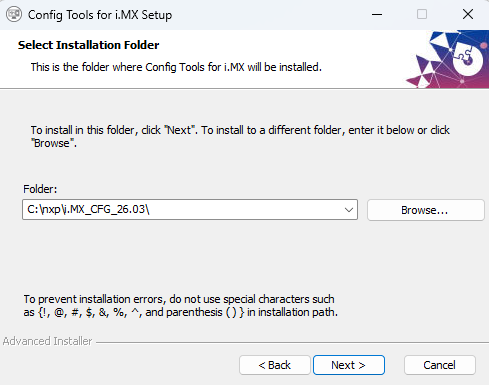
Select Installation Folder
Click Next.
On the Configure Shortcuts page of the wizard, select the shortcuts you want to be created for Config Tools for i.MX.

Configure Shortcuts
Click Next.
On the Ready to Install page of the wizard, select Install.

Ready to Install
The setup will begin the installation.
Note: If you want to review or change any of your installation settings, click Back. Click Cancel to exit the wizard.
The installer prompts you when the installation completes.

Installing Config Tools for i.MX
Click Finish to close and exit the setup wizard.

Complete installation
To start using the Config Tools for i.MX, run the tool from the shortcut on the desktop or from the Start menu. You can also navigate to the product installation folder\bin\ folder and launch the tools.exe or launch the shortcut in the product installation folder.
Installing on Mac
To install Config Tools for i.MX as a desktop application on a local host, do the following:
Double-click the
Config_Tools_for_i.MX_<version>_<architecture>.pkgto start the Install Config Tools for i.MX setupNote: When you try to open the MacOS installer you may receive and error. To avoid it, manually select the option Mac App Store and identified developers in the Security & Privacy menu.
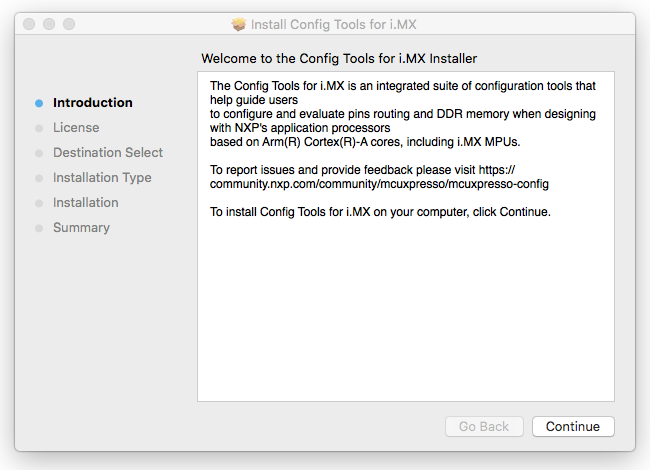
Introduction
On the Introduction page, click Continue.
On the Software License Agreement page, click Continue.

Software License Agreement
Confirm that you have read and agreed to the terms of the Software License Agreement by clicking Agree.

Software License Agreement
On the Destination Select page, click the green arrow to select the installation folder.
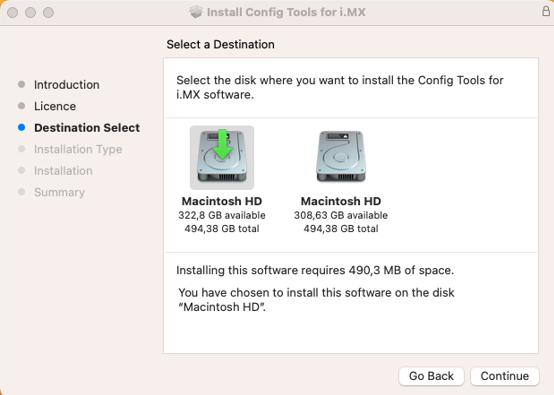
Select destination
Click Continue.
On the Installation Type page, click Install.
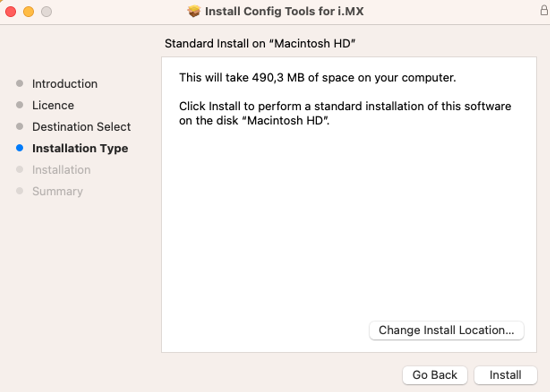
Installation Type
Type in your login credentials to continue with the installation.
Click Install Software.

Install Software

Install Software
Click Continue.
Unless errors are reported, the Summary page will confirm that the installation was completed successfully.
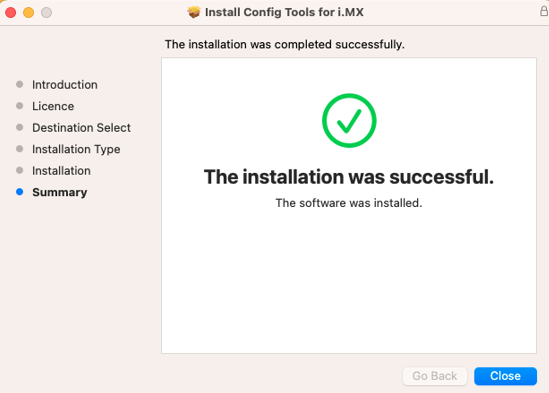
Summary
Click Close to exit the installation wizard.
Installing on Linux
This chapter provides information on installing and uninstalling the tool on Linux.
Installing using command line
chmod +x ./<name><version>-<pkg_revision><architecture>.deb.bin
$ sudo ./<name>_<version>-<pkg_revision>_<architecture>.deb.bin
  (Reading database ... .... files and directories currently installed .)
  Preparing to replace <name> <version> (using
     <name>_<version>-<pkg_revision>_<architecture>.deb) ...
  Unpacking replacement <name> ...
  Setting up <name> (<version>) ...
This installs the tools to the default location (/opt/nxp/<default_path>).
Uninstalling using command line
In the Terminal, you can get the list of MCUX Config Tools with the package names.
dpkg --list "config-tools-for-imx*"
Desired=Unknown/Install/Remove/Purge/Hold
| Status=Not/Inst/Conf-files/Unpacked/halF-conf/Half-inst/trig-aWait/Trig-pend
|/ Err?=(none)/Reinst-required (Status,Err: uppercase=bad)
||/ Name                       Version      Architecture Description
+++-==========================-============-============-=================================
ii  config-tools-for-imx-v16   16.0         amd64        Config Tools for i.MX
Now, the desired version can be uninstalled:
sudo dpkg -r config-tools-for-imx-v16
Note about the source code in the document
Example code shown in this document has the following copyright and BSD-3-Clause license:
Copyright 2026 NXP Redistribution and use in source and binary forms, with or without modification, are permitted provided that the following conditions are met:
Redistributions of source code must retain the above copyright notice, this list of conditions and the following disclaimer.
Redistributions in binary form must reproduce the above copyright notice, this list of conditions and the following disclaimer in the documentation and/or other materials must be provided with the distribution.
Neither the name of the copyright holder nor the names of its contributors may be used to endorse or promote products derived from this software without specific prior written permission.
THIS SOFTWARE IS PROVIDED BY THE COPYRIGHT HOLDERS AND CONTRIBUTORS “AS IS” AND ANY EXPRESS OR IMPLIED WARRANTIES, INCLUDING, BUT NOT LIMITED TO, THE IMPLIED WARRANTIES OF MERCHANTABILITY AND FITNESS FOR A PARTICULAR PURPOSE ARE DISCLAIMED. IN NO EVENT SHALL THE COPYRIGHT HOLDER OR CONTRIBUTORS BE LIABLE FOR ANY DIRECT, INDIRECT, INCIDENTAL, SPECIAL, EXEMPLARY, OR CONSEQUENTIAL DAMAGES (INCLUDING, BUT NOT LIMITED TO, PROCUREMENT OF SUBSTITUTE GOODS OR SERVICES; LOSS OF USE, DATA, OR PROFITS; OR BUSINESS INTERRUPTION) HOWEVER CAUSED AND ON ANY THEORY OF LIABILITY, WHETHER IN CONTRACT, STRICT LIABILITY, OR TORT (INCLUDING NEGLIGENCE OR OTHERWISE) ARISING IN ANY WAY OUT OF THE USE OF THIS SOFTWARE, EVEN IF ADVISED OF THE POSSIBILITY OF SUCH DAMAGE.
Revision history
Document ID |
Release date |
Description |
|---|---|---|
IMXIUG v.15.0 |
25 March 2026 |
Updated for v.26.03 |
IMXIUG v.14.0 |
16 December 2025 |
Updated for v.25.12 |
IMXIUG v.13.0 |
18 September 2025 |
Updated for v.25.09 |
IMXIUG v.12.0 |
20 June 2025 |
Updated for v.25.06 |
IMXIUG v.11.0 |
17 March 2025 |
Updated for v.25.03 |
IMXIUG v.10.0 |
15 January 2025 |
Updated for v.24.12 |
IMXIUG v.9.0 |
24 September 2024 |
Updated for v.16.1 |
IMXIUG v.8.0 |
1 July 2024 |
Updated for v.16 |
IMXIUG v.7.0 |
19 April 2024 |
Updated for v.15.1 |
IMXIUG v.6.0 |
10 January 2024 |
Updated for v.15 |
IMXIUG v.5.0 |
31 July 2023 |
Updated for v.14 |
IMXIUG v.4.0 |
2 January 2023 |
Screenshots are updated, minor updates |
IMXIUG v.3.0 |
20 September 2022 |
Updated for v.12.1 |
IMXIUG v.2.0 |
30 June 2022 |
Updated for v.12 |
IMXIUG v.1.0 |
22 December 2021 |
Screenshots are updated. |
IMXIUG v.0 |
23 June 2021 |
Initial version |