Introduction
Config Tools for i.MX is a suite of tools intended for configuration of NXP i.MX Cortex-A and Cortex-M-based processors.
Use the Pins tool to customize pin routing configuration of the device, including configuration of electrical properties related to all respective pin signals, and to create source codes applicable for a device initialization either as direct initialization of register(s) or code for SDK API and/or device tree code snippet (if supported).
Use the DDR tool to configure and validate the double data rate RAM configuration.
Use the Trusted Execution Environment (TEE) tool to configure security policies of memory areas, bus masters, and peripherals, in order to isolate and safeguard sensitive areas of your application.
Start with a new configuration
Starting Config Tools for i.MX the first time, you will be greeted by the Start Development window. You can use this window to create a new configuration or load an existing one.
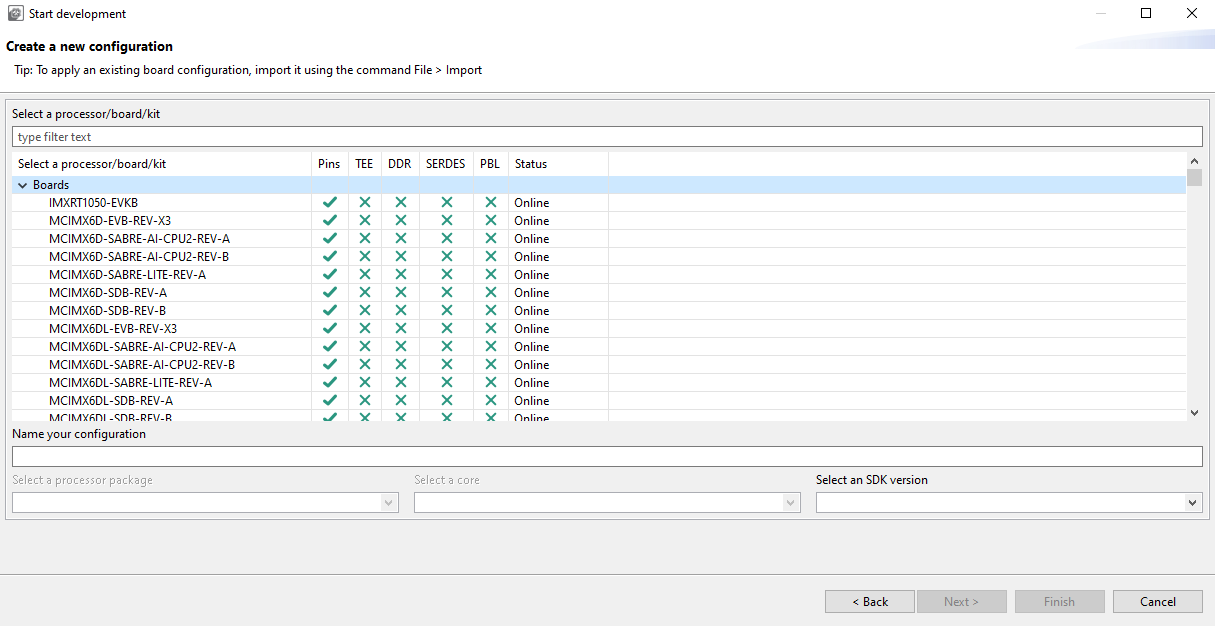
Create a new configuration
To create a new configuration for selected processor, board or kit at any time, do the following:
Start the tool or select File > New.
Select option Create new configuration for processor, board or kit.
Select Next.
Expand the tree and select any processor, board or kit configuration. You can also use the filter field to quickly find desired item.
Customize name of the configuration and select Finish.
Use File > Save to save existing configuration to the disk.
Import an existing configuration
You can also import an existing configuration using a built-in import wizard for getting pins and DDR configuration either from legacy project formats (IO Mux Tool Design Configuration XML or PEx for i.MX) or another already existing configuration file (MEX) or Pins tool-generated source files containing YAML configuration details.
To import an existing configuration:
Select File > Import.
Choose the import wizard, select Next and follow the instructions.
Select Browse and then the required input file(s).
Select Finish to import files.
New configuration is created if the import is finished successfully, then use File > Save to save it to the disk.

Import
Pins Tool
In the Pins tool, you can display and configure the pins of selected processor. Basic configuration can be done in the Pins, Peripheral Signals, or Package views.
More advanced settings (pin electrical properties and features) can be viewed and configured in the Routed Pins view.
Moreover, Config Tools for i.MX allows you to verify possible voltage level issues on HW level within given functional group for pins configuration from different power rails (if specified for given processor). Individual voltage level for supported power groups can be configured globally per current configuration in Power Groups view.

Pins tool user interface
DDR Tool
In the DDR view you can view and configure basic DDR attributes, such as memory type, frequency, number of channels and others.
In the Validation view, you can submit the DDR configuration to a variety of tests. After you’ve specified the connection type, you can choose scenarios, tests to run in these scenarios, and view the test results, logs, and summary.
Trusted Execution Environment Tool
In the Trusted Execution Environment, or TEE tool, you can configure security policies of memory areas, bus masters, and peripherals, in order to isolate and safeguard sensitive areas of your application.
You can set security policies of different parts of your application in the Security Access Configuration and its subviews, and review these policies in the Memory Attribution Map, Access Overview and Domains Overview views. Use the User Memory Regions view to create a convenient overview of memory regions and their security levels.
You can also view registers handled by the TEE tool in the Registers view, and inspect the code in the Code Preview tool.
Note: In order for your configuration to come into effect, make sure you have enabled the relevant enable secure check option in the Miscellaneous subview of the Security Access Configuration view.
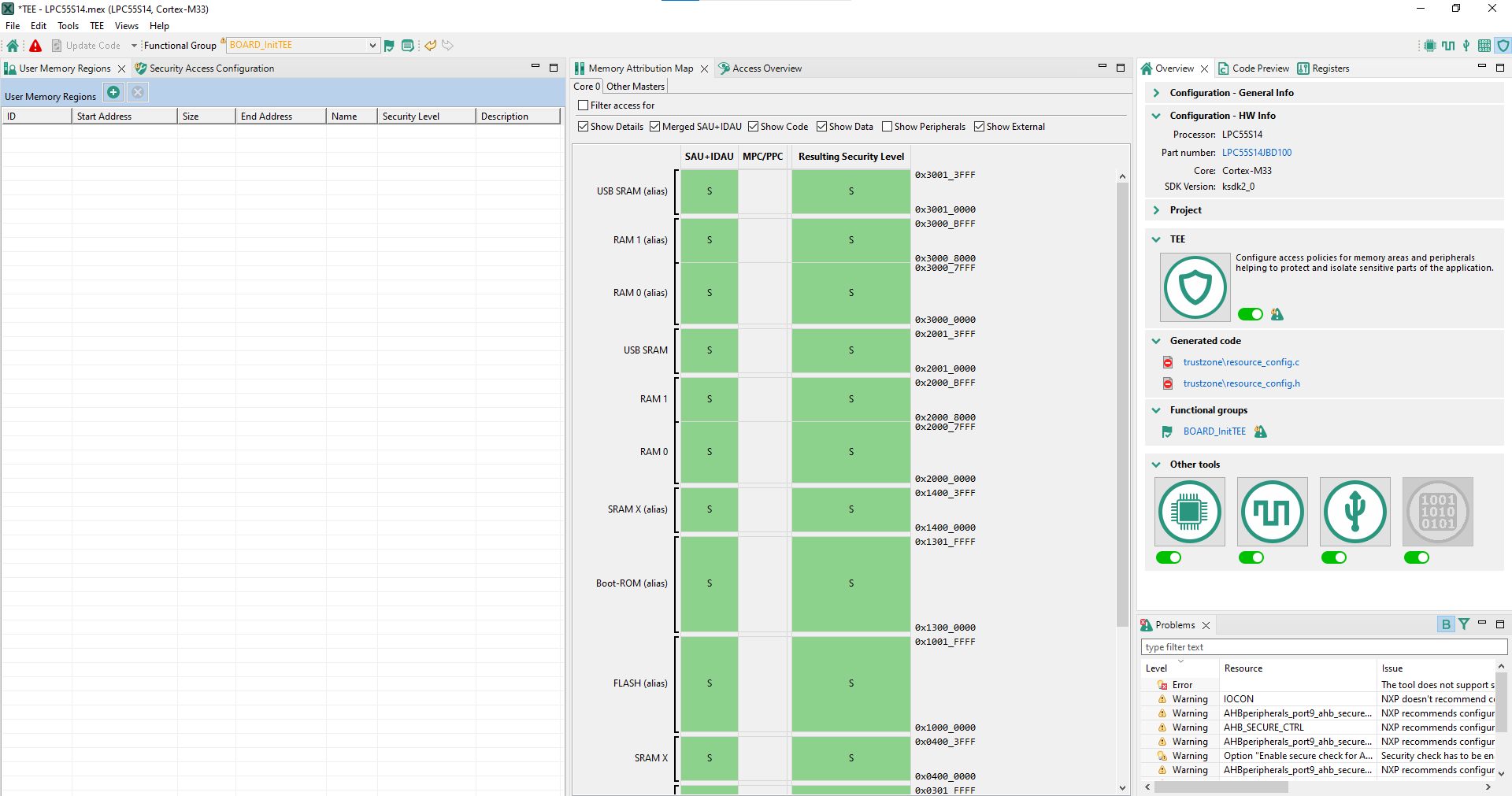
TEE tool user interface (SAU+IDAU)
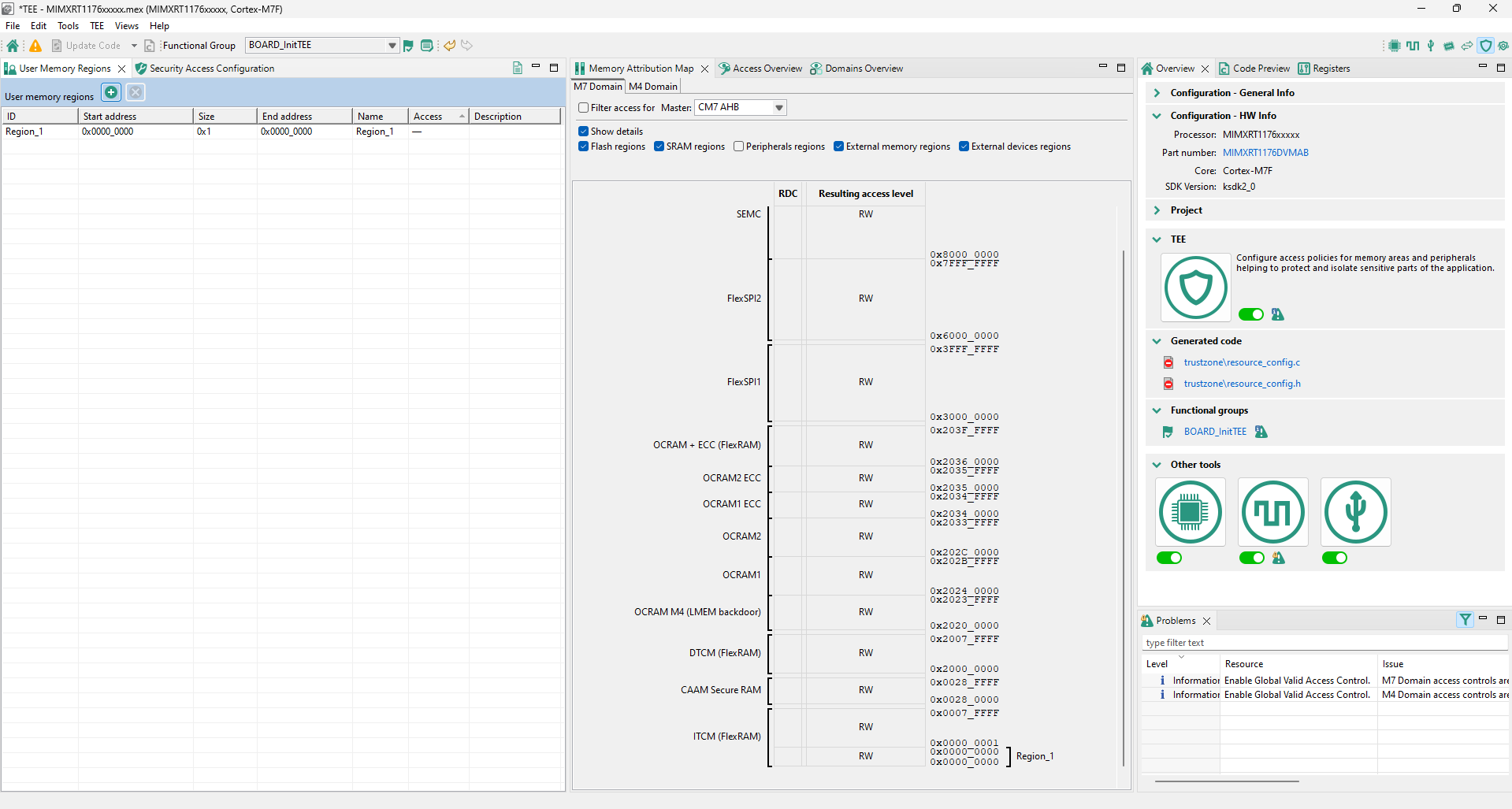
TEE tool user interface (RDC)
Generate code
The Pins tool generates the output code for current configuration automatically. You can also select Pins. Refresh from the Main Menu to update the code manually. All output code files are displayed in the Code Preview view. To copy the code, perform the copy/paste operation or click the Export icon in the right up corner of Code Preview view.
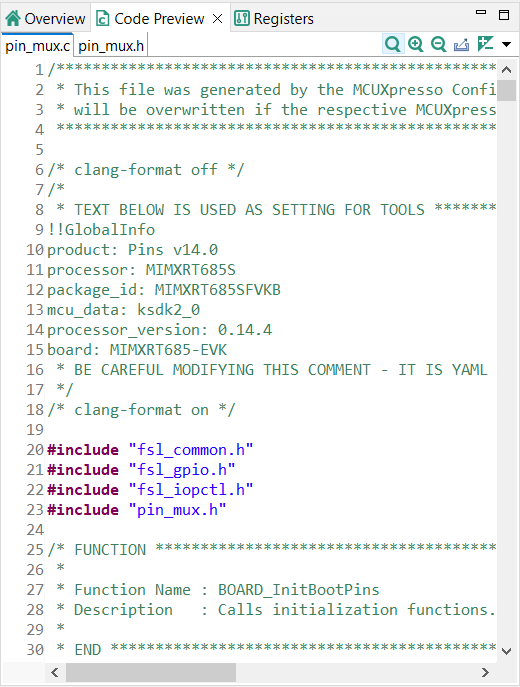
Generate code
Alternatively, you can also export generated output in various types of output like source files, plain pins configuration data in CSV, modified registers content or as pins configuration report in HTML per specific export wizard selectable from File > Export from the Main Menu.
Note about the source code in the document
Example code shown in this document has the following copyright and BSD-3-Clause license:
Copyright 2026 NXP Redistribution and use in source and binary forms, with or without modification, are permitted provided that the following conditions are met:
Redistributions of source code must retain the above copyright notice, this list of conditions and the following disclaimer.
Redistributions in binary form must reproduce the above copyright notice, this list of conditions and the following disclaimer in the documentation and/or other materials must be provided with the distribution.
Neither the name of the copyright holder nor the names of its contributors may be used to endorse or promote products derived from this software without specific prior written permission.
THIS SOFTWARE IS PROVIDED BY THE COPYRIGHT HOLDERS AND CONTRIBUTORS “AS IS” AND ANY EXPRESS OR IMPLIED WARRANTIES, INCLUDING, BUT NOT LIMITED TO, THE IMPLIED WARRANTIES OF MERCHANTABILITY AND FITNESS FOR A PARTICULAR PURPOSE ARE DISCLAIMED. IN NO EVENT SHALL THE COPYRIGHT HOLDER OR CONTRIBUTORS BE LIABLE FOR ANY DIRECT, INDIRECT, INCIDENTAL, SPECIAL, EXEMPLARY, OR CONSEQUENTIAL DAMAGES (INCLUDING, BUT NOT LIMITED TO, PROCUREMENT OF SUBSTITUTE GOODS OR SERVICES; LOSS OF USE, DATA, OR PROFITS; OR BUSINESS INTERRUPTION) HOWEVER CAUSED AND ON ANY THEORY OF LIABILITY, WHETHER IN CONTRACT, STRICT LIABILITY, OR TORT (INCLUDING NEGLIGENCE OR OTHERWISE) ARISING IN ANY WAY OUT OF THE USE OF THIS SOFTWARE, EVEN IF ADVISED OF THE POSSIBILITY OF SUCH DAMAGE.
Revision history
Document ID |
Release date |
Description |
|---|---|---|
IMXQSUG v.15.0 |
25 March 2026 |
Updated for v.26.03 |
IMXQSUG v.14.0 |
16 December 2025 |
Updated for v.25.12 |
IMXQSUG v.13.0 |
18 September 2025 |
Updated for v.25.09 |
IMXQSUG v.12.0 |
20 June 2025 |
Updated for v.25.06 |
IMXQSUG v.11.0 |
17 March 2025 |
Updated for v.25.03 |
IMXQSUG v.10.0 |
15 January 2015 |
Updated for v.24.12 |
IMXQSUG v.9.0 |
24 September 2024 |
Updated for v.16.1 |
IMXQSUG v.8.0 |
1 July 2024 |
Updated for v.16 |
IMXQSUG v.7.0 |
19 April 2024 |
Updated for v.15.1 |
IMXQSUG v.6.0 |
10 January 2024 |
Updated for v.15 |
IMXQSUG v.5.0 |
31 July 2023 |
Updated for v.14 |
IMXQSUG v.4.0 |
2 January 2023 |
Screenshots are updated, minor updates |
IMXQSUG v.3.0 |
20 September 2022 |
Updated for v.12.1 |
IMXQSUG v.2.0 |
30 June 2022 |
Updated for v.12 |
IMXQSUG v.1.0 |
22 December 2021 |
Screenshots are updated. |
IMXQSUG v.0 |
23 June 2021 |
Initial version |