
Advanced features#
This section gives an overview of the advanced features.
Switching the processor#
You can switch the processor or the package of the current configuration to a different one. However, switching to a completely different processor may lead to various issues, such as inaccessible pin routing or unsatisfiable clock-output frequency. In that case, it’s necessary to fix the problem manually. For example, go to the Routing Details view and reconfigure all pins which report an error or conflict. Alternatively, you may need to change the required frequencies on clock output.
To change the processor in the selected configuration, select File > Switch processor from the Menu bar.
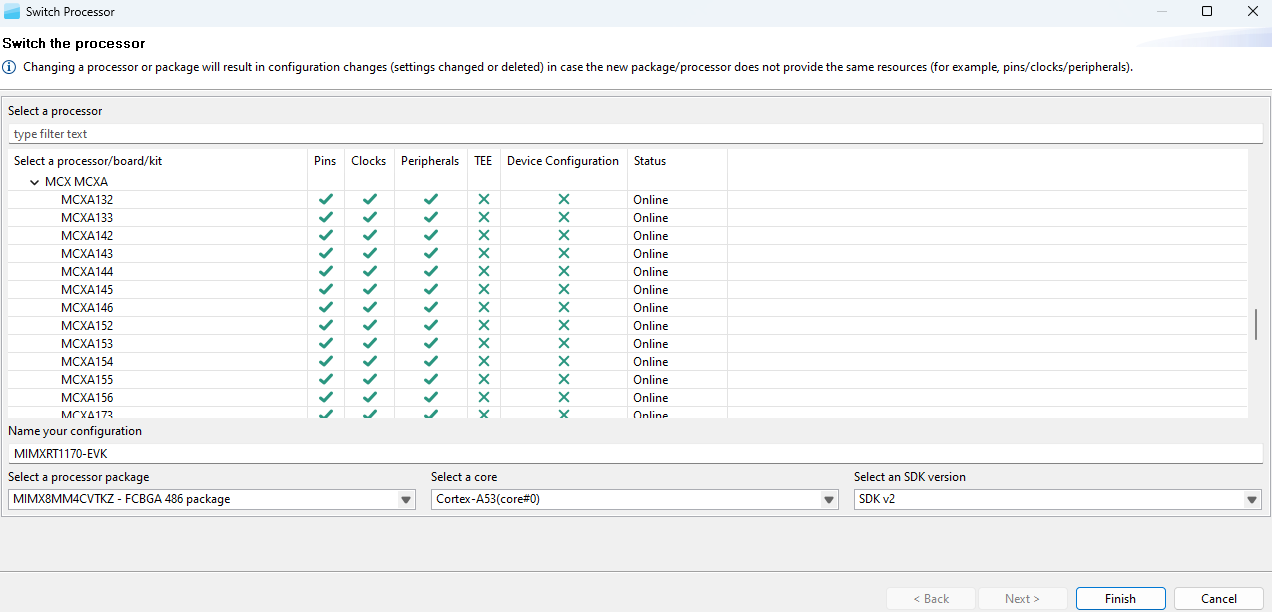
Switch processor#
To change the package of the currently selected processor, select File > Switch package from the Menu bar.
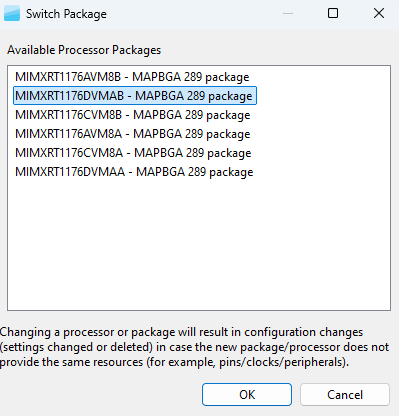
Switch package for the processor#
Exporting the Pins table#
To export the Pins table, do the following:
In the Menu bar, select File > Export.
In the Export wizard, select Export the Pins in CSV (Comma Separated Values) Format.
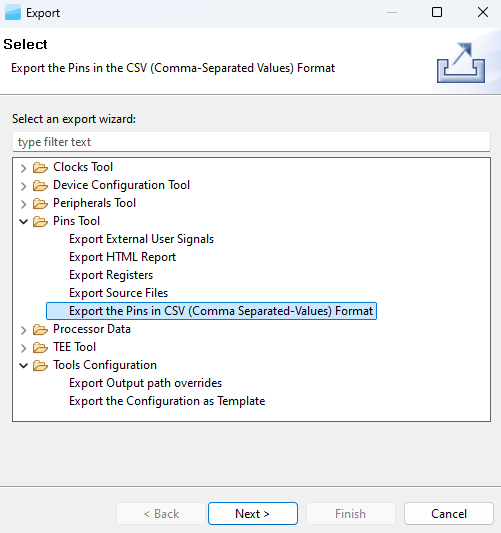
Export dialog#
Click Next.
Select the folder and specify the filename to which you want to export.
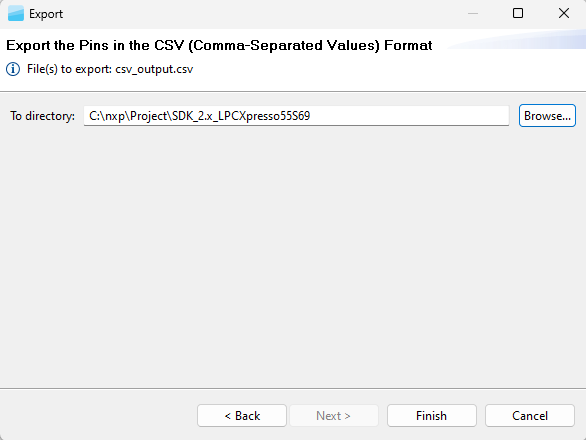
Export the Pins in CSV#
The exported file contains the content of the Pins view table, and lists the functions and the selected routed pins.
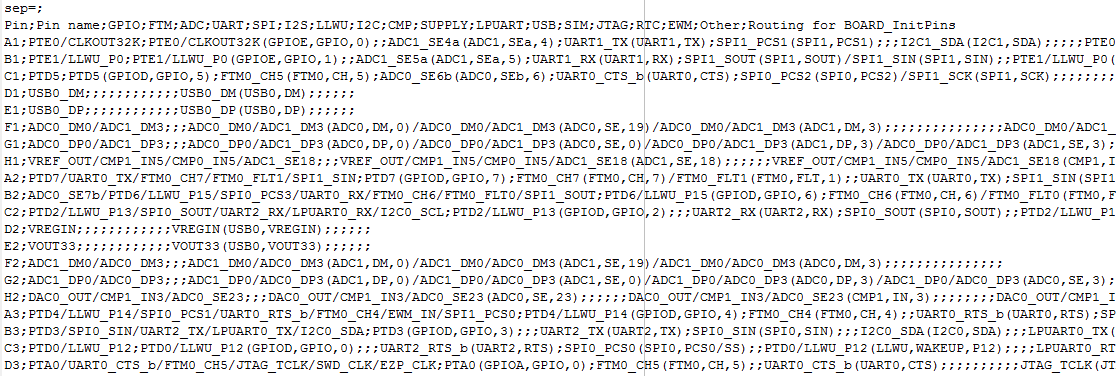
Exported file content#
The exported content can be used in other tools for further processing. For example, see it after aligning to blocks in the image below.
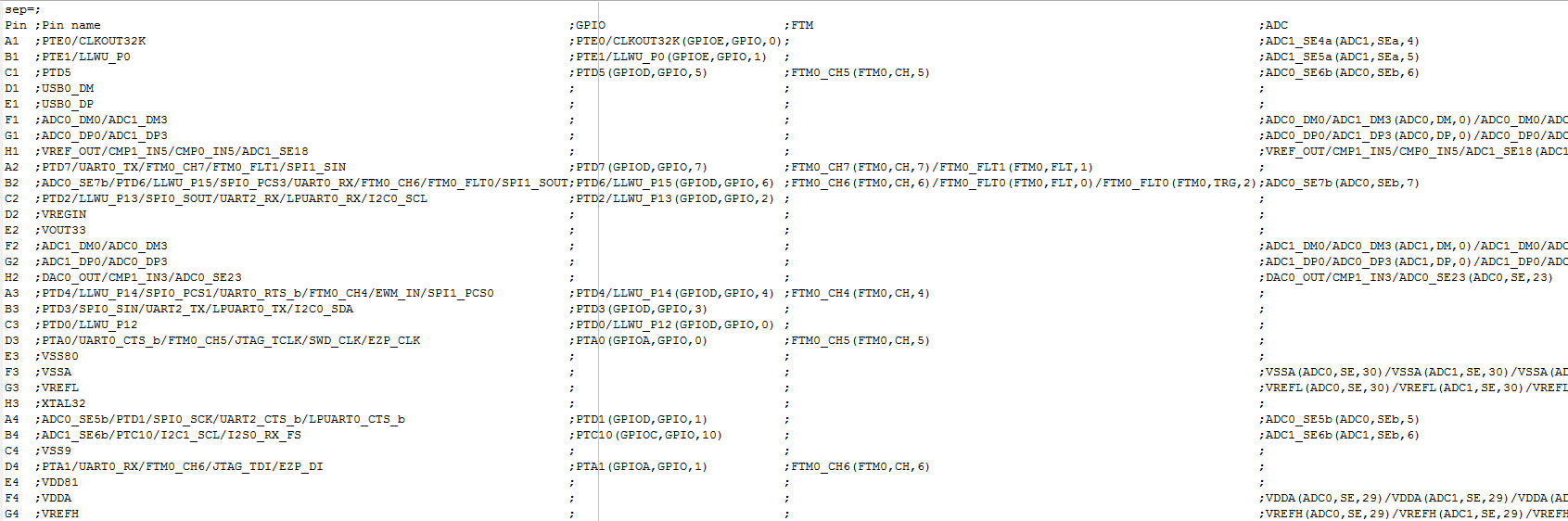
Aligning to block#
Tools advanced configuration#
Use the tools.ini file to configure the processor data directory location. Define the “com.nxp.mcudata.dir” property to set the data directory location.
For example: -Dcom.nxp.mcudata.dir=C:/my/data/directory.
Generating HTML reports#
You can generate an HTML report file that displays your configuration of Pins, Clocks, and Peripherals tool for future reference.
To generate the HTML report, select Export > Pins/Clocks/Peripherals Tool > Export HTML Report.
Exporting sources#
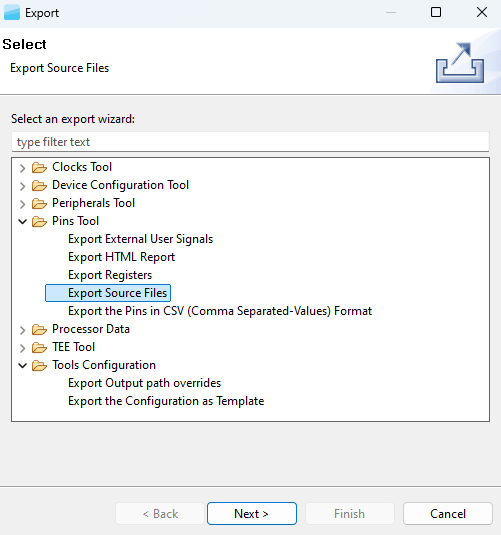
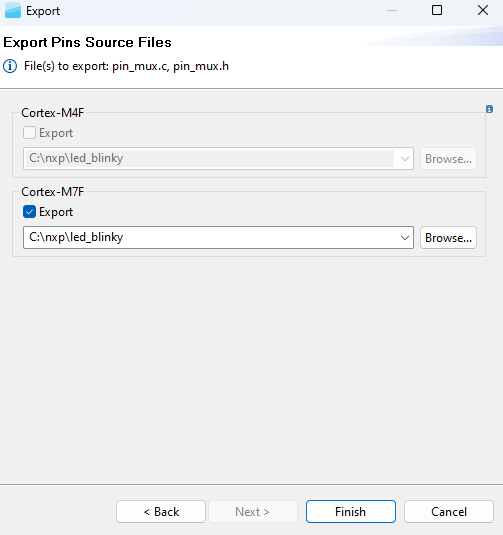
It is possible to export the generated source using the Export wizard.
To launch the Export wizard:
Exporting registers#
You can export the content of tool-modified registers data using the Export wizard.
To export registers, follow these steps:
Select File > Export from the main menu.
Select the Pins Tool > Export Registers option.
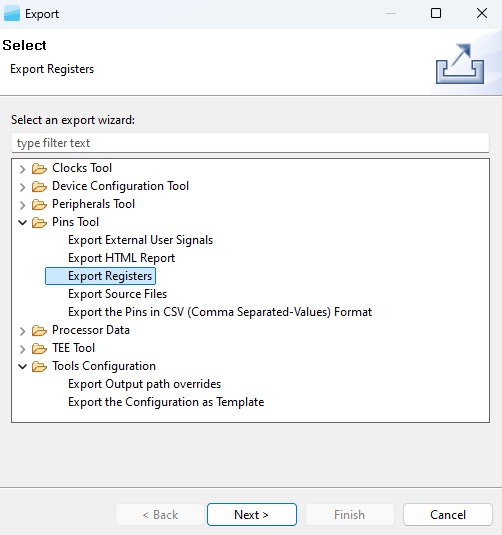
Export registers#
Click Next.
Select the target file path where you want to export modified registers content.
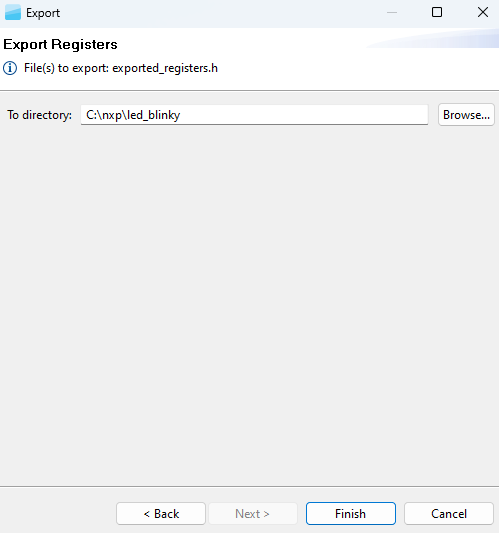
Export registers directory#
Click Finish.
Note: The Export wizard can also be opened by clicking the Export registers to CSV button in the Registers view.
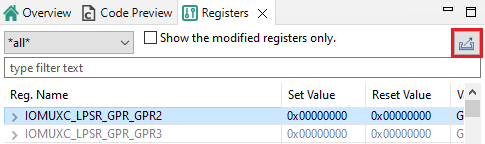
Export registers to CSV#
Updating the SDK West project#
MCUXpresso Config Tools generates source code modules. It may require adjustments to the toolchain project to ensure a successful build. These changes may mean, for example, adding the newly generated files, adding include paths, required drivers, or other SDK components.
This section describes how to apply the required updates to a toolchain project managed by the SDK West tool. For details on creating the configuration for this project type, see Creating a new configuration for SDK West.
If you are using MCUXpresso for Visual Studio Code, it is recommended to invoke the Config Tools from there. In this case, a resolution of the requested changes in this IDE is offered. See Working with MCUXpresso Config Tools in the MCUXpresso for VS Code documentation for detailed guidelines.
To resolve the changes in the project manually, follow these steps:
After finishing the configuration, use the Update Code command to write the generated files to disk. The written files include a JSON file with the required changes in the toolchain project.
In the terminal, launch the west command that updates the project. For example:
west cfg_resolve -b lpcxpresso55s69 ...mcuxsdk/examples/demo_apps/hello_world/ -Dcore_id=cm33_core0
This command updates appropriate cmake and kconfig files to address the changes needed.
Command-line execution#
This section describes the Command-Line Interface (CLI) commands supported by the desktop application.
On error, the application exits:
Tools v4.1 and older:
With ‘123321’ error code. The reason should be logged.
Tools v5.0 and newer:
when a parameter is missing
when a tool error occurs
You can chain commands in CLI.
Notes regarding command-line execution:
Command -HeadlessTool is used as a separator of each command chain.
Each command chain works independently.
Every chain starts with the -HeadlessTool command and continues to the next -HeadlessTool command, or end. (The only exception are commands from the framework that do not need the -HeadlessTool command).
Commands that do not need the -HeadlessTool command, can be placed before the first -HeadlessTool if chained, or without -HeadlessTool when not chained.
Commands from each tool are executed in a given order.
Commands from the framework are not executed in a given order.
The following commands are not executed in a given order:
ImportProject
Export MEX
ExportAll
The application can exit with the following codes when unexpected behavior occurs:
When a parameter is missing: 1
When a tool error occurs: 2
Command example:
-HeadlessTool Clocks -MCU MK64FX512xxx12 -SDKVersion ksdk2_0 -ExportSrc C:/exports/src -HeadlessTool Pins -MCU MK64FX512xxx12 -SDKVersion ksdk2_0 -ExportSrc C:/exports/src -HeadlessTool Peripherals -MCU MK64FX512xxx12 -SDKVersion ksdk2_0 -ExportSrc C:/exports/src
For performance reasons, when CLI is expected to be used multiple times with the same processor, the data is only loaded if it is not already on disk. If there is newer data on the server, it is not updated.
Long-running jobs share data, so they do not get updated in the middle of execution. To update local data that may have a newer version on the server, use the -updateData parameter.
Recommended usage:
For manual one-time usage, include the
-updateDataparameter on the CLI.For multiple executions, for example, continuous integration, set your job up:
Use the first simple command with
-updateData, which updates possibly outdated data.Use all other commands in a batch run without this parameter:
copy /Y tools.exe toolsc.exe
@rem updates all local data if newer existstools.exe -updateData -consoleLog -HeadlessTool Pins@rem now runs tools many timestools.exe -consoleLog -HeadlessTool Pins -Load some.mex -ExportAll c:/directorytools.exe -consoleLog -HeadlessTool Pins -Load other.mex -ExportAll c:/other_directory@rem and so on.
The following commands are supported in the framework:
Table commands supported in the framework#
Command name |
Definition and parameters |
Description |
Restriction |
Example |
|---|---|---|---|---|
Version of the product |
|
Shows the build version of the product to stdout and continues parsing other parameters. (since 6.0) |
|
|
Force language |
|
Forces set language. {lang} is in ISO-639-1 standard |
Removal of the ‘.nxp’ folder from home directory is recommended, as some text might be cached. Only ‘zh’ and ‘en’ are supported. |
|
Show console |
|
Log output is also sent to Java’s System.out (typically back to the command shell if any) |
None |
|
Empty configuration |
|
Ensures creating a new empty configuration without any content |
Requires the |
|
Select MCU |
|
MCU to be selected by framework. Changes the processor in the result configuration of the previous chain |
Requires the |
|
Select core |
|
Select core for the configuration |
Requires the |
|
Select board |
|
Board to be selected by framework (MCU is automatically selected too) (since 6.0) |
Requires the |
|
Select kit |
|
Kit to be selected by framework (MCU and board are automatically selected too) (since 6.0) |
Requires the |
|
Select SDK version |
|
Version of the MCU to be selected by framework |
Requires the |
|
Select part number |
|
Selects specific package of the MCU. Changes package in result configuration of previous chain, see the command about “-MCU” |
Requires the |
|
Configuration name |
|
Name of newly created configuration - used in export. Rename the configuration |
Requires the |
|
Select tool |
|
Selects a tool that must be run in headless mode |
If the tool is disabled in the configuration, it is not enabled by this option. Use |
|
Load configuration |
|
Loads the existing configuration from a (*.mex) file |
None |
|
Export Mex |
|
Exports the .mex configuration file after tools run. The argument is expected to be a folder or path to specify the .mex file |
Requires the |
|
Export all generated files |
|
Exports all generated files (with source code, and so on). Code is regenerated before export. Includes |
Requires the |
|
Create a new configuration by importing a toolchain project |
|
Creates a new configuration by importing the toolchain project. The parameter is a path to the root of the toolchain project. |
Requires the |
|
Create a new configuration from toolchain project |
|
Creates a new configuration (memory only) by importing a toolchain project based on the found .mex or YAML info. It makes no changes on the disk (mex and update code) and validates the configuration. The parameter is a path to the root of the toolchain project. Since v16: allows setting the toolchain project file path directly (for example, *.cbuild-gen-idx.yml, *.uvprojx, *.ewp, CMakeLists.txt); allows creating/opening configuration directly in UI from the toolchain project |
None |
|
Generate source files with custom copyright |
|
The file content is inserted as a copyright header comment into generated source files (.c, .h, .dts, .dtsi) that do not contain copyright |
Requires the |
|
Override the output path of the generated files |
|
Path to the file with rules that will be used to override output paths of the generated file. An empty list of rules removes the set rules. |
Requires the |
|
Batch processing |
|
Path to the file with commands that are run on defined paths. For details, see: Batch processing |
Requires the |
|
Project link |
|
A custom path to the toolchain project folder. It can be used as the absolute path or relative against the saved configuration. Empty string for default that is not saved in the configuration (since v14). |
When the command is not used along with the |
|
Update locally downloaded data |
|
Downloads data for already locally downloaded data if they have an update. |
None |
|
Update code generated by tools |
|
Performs the update code operation for all tools, the same way as is the default behavior of the Update Code button and then clicking OK. If the configuration was modified in UI tools to generate only some sources, only these sources are generated. Select a saved configuration, for example via the |
Requires the |
|
Run tools in OpenCMSIS “generator mode” |
|
It generates the OpenCMSIS cgen.yml file into the project output folder specified by *.cbuild-gen-idx.yml. |
|
Command-line execution - Pins Tool#
This section describes the Command Line Interface (CLI) commands supported in the Pins Tool.
Table Commands supported in Pins Tool#
Command name |
Definition and parameters |
Description |
Restriction |
Example |
|---|---|---|---|---|
Enable tool |
|
Enables the tool if it is disabled in the current configuration |
Requires the |
|
Import C files |
|
Imports .c files into configuration. Importing is done after loading mex and before generating outputs |
Requires the |
|
Export all generated files (to simplify all exports commands to one command) |
|
Exports generated files (with the source code, and so on). The code is regenerated before the export. Includes -ExportSrc, -ExportCSV, -ExportHTML and in framework -ExportMEX. The argument is expected to be a folder |
Requires the |
|
Export Source files |
|
Exports generated source files. The code is regenerated before the export. The argument is expected to be a folder |
Requires the |
|
Export CSV file |
|
Exports the generated .csv file. The code is regenerated before export. The argument is expected to be a folder |
Requires the |
|
Export HTML report file |
|
Exports the generated HTML report file. The code is regenerated before the export. The argument is expected to be a folder |
Requires the |
|
Export registers |
|
Exports the registers tab into a folder. The code is regenerated before the export. The argument is expected to be a folder |
Requires the |
|
Command-line execution - Clocks Tool#
This section describes the Command-Line Interface (CLI) commands supported by the Clocks Tool.
Table Commands supported in Clocks Tool#
Command name |
Definition and parameters |
Description |
Restriction |
Example |
|---|---|---|---|---|
Enable tool |
|
Enables the tool if it is disabled in the current configuration |
Requires the |
|
Import C files |
|
Imports .c files into the configuration (disables other tools when importing into an empty configuration) |
Requires the |
|
Export all generated files (to simplify all exports commands to one command) |
|
Exports generated files (with the source code and all the available export objects). The code is regenerated before the export. Includes -ExportSrc and in framework -ExportMEX. The argument is expected to be a folder |
Requires the |
|
Export Source files |
|
Exports generated source files. The code is regenerated before the export. The argument is expected to be a folder |
Requires the |
|
Export HTML report file |
|
Exports the generated HTML report file. The code is regenerated before the export. The argument is expected to be a folder |
Requires the |
|
Export registers |
|
Exports the registers tab into the folder. The code is regenerated before the export. The argument is expected to be a folder |
Requires the |
|
Command-line execution - Peripherals Tool#
This section describes the Command-Line Interface (CLI) commands supported by the Peripherals Tool.
Table Commands supported in Peripherals Tool#
Command name |
Definition and parameters |
Description |
Restriction |
Example |
|---|---|---|---|---|
Enable tool |
|
Enables the tool if it is disabled in the current configuration |
Requires the |
|
Import C files |
|
Imports .c files into the configuration. Importing is done after loading mex and before generating outputs |
Requires the |
|
Export all generated files (to simplify all exports commands to one command) |
|
Exports generated files (with source code and so on). The code is regenerated before the export. Includes -ExportSrc, -ExportHTML, and in the framework -ExportMEX. The argument is expected to be a folder |
Requires the |
|
Export Source files |
|
Exports generated source files. The code is regenerated before the export. The argument is expected to be a folder |
Requires the |
|
Export the HTML report file |
|
Exports the generated HTML report file. The code is regenerated before the export. The argument is expected to be a folder |
Requires the |
|
Migrate all Peripherals tool components to the versions used in the toolchain project |
|
Migrates all instances of Peripherals tool components, which are not configuring the version used in the toolchain project, to the version of SDK component used in the toolchain project. No changes are done when the toolchain is not linked or the Peripherals tool component already configures the version of the SDK component used in the toolchain project |
Requires the |
|
Migrate all Peripherals tool components to the highest supported version of the SDK component |
|
Migrates all instances of Peripherals tool components to the MCU’s highest supported version of the SDK component, which the Peripherals tool component configures. No changes are done when already using the highest version available on the MCU |
Requires the |
|
Regenerate all PLU configurations |
|
Regenerates the content of all PLU instances present in the configuration. Currently only the PLU instances in Verilog file and Verilog text modes are regenerated by new Verilog code synthesis and optimization of the model. Requires usage of mapping comment in the Verilog code |
Requires the |
|
Command-line execution - TEE Tool#
This section describes the Command Line Interface (CLI) commands supported in the TEE Tool.
Table Commands supported in TEE Tool#
Command name |
Definition and parameters |
Description |
Restriction |
Example |
|---|---|---|---|---|
Enable tool |
|
Enables the tool if it is disabled in the current configuration |
Requires the |
|
Export all generated files (to simplify all exports commands to one command) |
|
Exports generated files (with source code and so on). The code is regenerated before the export. Includes -ExportSrc, -ExportHTML, and in framework -ExportMEX. The argument is expected to be a folder |
Requires the |
|
Export Source files |
|
Exports generated source files. The code is regenerated before the export. The argument is expected to be a folder |
Requires the |
|
Export registers |
|
Exports the registers tab into a folder. The code is regenerated before the export. The argument is expected to be a folder |
Requires the |
|
Command-line execution - Project Cloner#
This section describes the Command Line Interface (CLI) commands supported in Project Cloner.
Table Commands supported in Project Cloner#
Command name |
Definition and parameters |
Description |
Restriction |
Example |
|---|---|---|---|---|
Specify SDK path |
|
Specify an absolute path to the root directory of the SDK package |
@since v3.0 |
|
Clone SDK example project |
|
Clones the specified SDK example project under a new name: |
Requires |
|
Command-line execution - DCDx (Device configuration)#
This section describes the Command Line Interface (CLI) commands supported in DCDx.
Table Commands supported in DCDx#
Command name |
Definition and parameters |
Description |
Restriction |
Example |
|---|---|---|---|---|
Enable tool |
|
Enables the tool if it is disabled in the current configuration. |
Requires the |
--HeadlessTool DCDx -Enable |
Import C file |
|
Imports the |
Requires the |
-HeadlessTool DCDx -MCU MIMXRT1052xxxxB -SDKversion ksdk2_0 -ImportC c:\import\evkbimxrt1050_sdram_ini_dcd.c |
Export all generated files(to simplify all exports commands to one command) |
|
Exports generated files (with source code, and so on) The code is regenerated before the export. Includes -ExportSrc and in framework -ExportMEX. The argument is expected to be a folder. |
Requires the |
-HeadlessTool DCDx -MCU MIMXRT1052xxxxB -SDKversion ksdk2_0 -ExportAll c:\export |
Export Source files |
|
Exports generated source files. The code is regenerated before the export. The argument is expected to be a folder. |
Requires the |
-HeadlessTool DCDx -MCU MIMXRT1052xxxxB -SDKversion ksdk2_0 -ExportSrc c:\export |
Source file name without ext |
|
This option can be used with -ExportSrc. The argument specifies the source file name without the extension to be used for naming generated source files. |
Requires the |
-HeadlessTool DCDx -MCU MIMXRT1052xxxxB -SDKversion ksdk2_0 -ExportSrc c:\export -SrcName evkbimxrt1050_sdram_ini_dcd |
Import Legacy C file |
|
Imports the |
Requires the |
-HeadlessTool DCDx -MCU MIMXRT1052xxxxB -SDKversion ksdk2_0 -ImportLegacyC c:\import\evkbimxrt1050_sdram_ini_dcd.c |
Keep the name of the imported source file |
|
This option can be used with -ImportLegacyC. The name of the imported source file must be used for generated source files names. |
Requires the |
-HeadlessTool DCDx -MCU MIMXRT1052xxxxB -SDKversion ksdk2_0 -ImportLegacyC c:\import\evkbimxrt1050_sdram_ini_dcd.c -ExportMcuTemplate c:\export -KeepSrcName |
Managing data and working offline#
With the Data Manager, you can download, import, and export processor data. This feature is especially useful if you want to make the best out of the tools while staying offline.
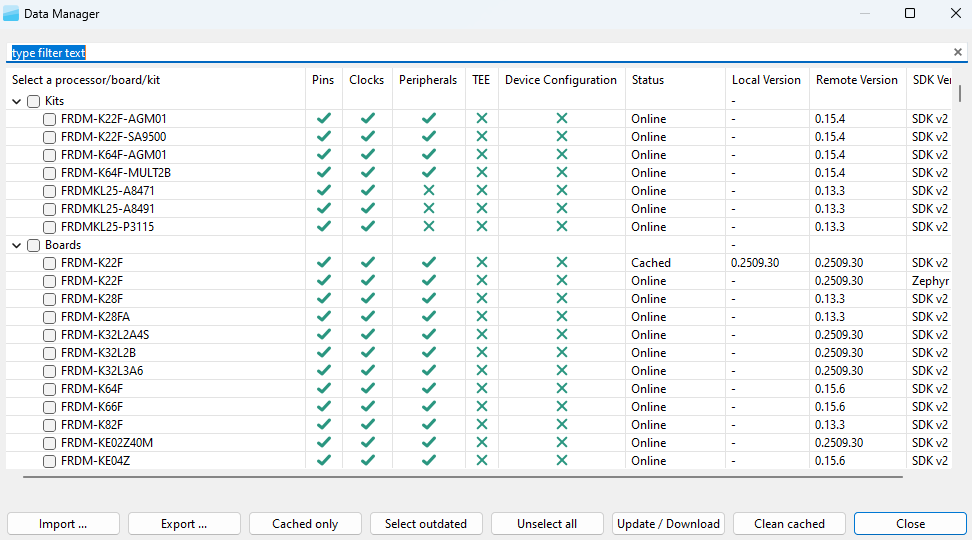
Data Manager#
Working offline#
You can create a new configuration even without access to the Internet by working with cached processor data. To do so you must download processor-specific data before going offline, or import data downloaded and exported from an online computer.
To work offline, select Edit > Preferences > Work offline from the Menu bar.
Downloading data#
You can download required processor data with Data Manager.
Note: By default, the data is downloaded and cached automatically during the Creating a new standalone configuration for processor, board, or kit process.
To download processor data, do the following:
Note: Internet connection is required for data download.
In Menu bar, select File > Data Manager.
In Data Manager, select the processor/board/kit you want to work with from the list.
Click Update / Download and confirm.
The data is now downloaded on your local computer, as shown by the Cached status in Data Manager.
You can now close your Internet connection and work with the data by selecting File > New… > Create new standalone configuration for processor, board, or kit in the Start development wizard.
Downloading data from MCUXpresso SDK Builder#
You can download required processor data from MCUXpresso SDK Builder website.
Note: An NXP account is required for data download from the MCUXpresso SDK Builder website.
To download processor, board, or kit data, do the following:
Go to MCUXpresso SDK Builder home page.
Open Select Development Board.
In the left-side menu, select Offline data.
Use the Search for HW platform filter field or use the tree view to find your processor, board, or kit.
Use the Download Config Tools Data button under Actions to download data for a specific version of the Config Tools.
You can also download processor, board, or kit data for an existing SDK Build in your SDK Dashboard:
Go to MCUXpresso SDK Builder home page.
Open Access My SDK Dashboard.
Select the SDK Build for which you want to download Config Tools data and click the Download button.
In the Downloads window, select MCUXpresso Config Tools > Download Config Tools Data.
In the next menu, use the Download Config Tools Data button to download data for a specific version of the Config Tools.
To import the downloaded data, see Importing data.
Exporting data#
With Data Manager, you can export downloaded processor data in a ZIP format.
To export data, do the following:
In Menu bar, select File > Data Manager.
In Data Manager, click Export.
In Export Processor Data window, select the processor data you want to export.
Click Browse to specify the location and name of the resulting ZIP file.
Click Finish.
Data is now saved on your local computer in a ZIP format. You can physically (for example, with a USB stick) move it to an offline computer.
Note: You can also export downloaded data by selecting File > Export > Processor Data > Export Processor Data from the Menu bar.
Importing data#
You can import processor data from another computer with Data Manager, provided this data is available locally.
To import data, do the following:
In Menu bar, select File > Data Manager.
In Data Manager, select Import.
In Import Processor Data dialog, click Browse.
Specify the location of the ZIP file that you want to import and click OK.
Choose the data to import by selecting the checkbox in the table.
Click Finish.
The data is now imported to your offline computer, as shown by the Cached status in Data Manager. You can now work with the data by selecting New…> Create new standalone configuration for processor, board, or kit in the Start development wizard.
Note: You can also import data by selecting File > Import > Import Processor Data from the Menu bar.
Updating data#
You can keep cached data up to date with the Data Manager.
Note: If you select the relevant option in Edit > Preferences in the Menu bar, data is updated automatically or after a prompt.
Note: Internet connection is required for data update.
To update cached data, do the following:
In Menu bar, select File > Data Manager.
In Data Manager, filter outdated data by clicking Select outdated.
Click Update / Download and confirm.
You can always check versions of your data by clicking Cached only and comparing version information in the Local Version and Remote Version columns.
You can clean all cached data by selecting Clean cached. It removes all processor, board, kit, and component data, as well as SDK info files from your computer.
Note: This action does not affect user templates.
Output path overrides#
This section contains rules that override the path, including the name, of the output files generated by the tools. The rules are applied in the Update Code, Export Wizard, and Command-Line Export commands. The rules are stored in the MEX configuration.
Note: An invalid path is logged as a warning and the original non-overridden path is used.
Rules can be edited in the Output Path Override dialog box in the configuration settings. The new rule is added to the end of the list, the removal is performed for the selected element. The rules are applied to the path in a defined order, which can be changed. The rule contains:
Enabled – defines whether the rule is used by the applied path or skipped.
Description – used as a user-friendly description of the rule
Regular expression – matches the overriding parts in the whole output path. The format follows the Java regular expression syntax.
Replacement expression – used as a replacement of all matches in the path. Substring groups can be referenced by using placeholders $1, $2, and so on.
The output path override rules can be exported using the wizard to a YAML file. The structure of the YAML file is similar to that of the dialog box.
Example content of the output path override YAML file:
outputPathOverrides:
-description: Rule group.h
enabled:true
regex:(bo)ar(d)(/.*\.h)
replacement: $2ar$1$3
-description:Rule2
...
The second way to set the rules is to replace them by overriding the output path from the yaml file using wizards or the command line. Rules are used only if all rules are valid. An empty list deletes the current rules. An empty list in the output path overrides the yaml file.
outputPathOverrides: [
]
Batch processing#
Batch processing can be used to simplify and speed up processing of multiple configurations in an automated way using the command-line interface.
Batch processing is initiated by the headless command “-BatchFile”. When the command is used, the tool operation is controlled by the specified batch file passed as an argument.
Example:
-HeadlessTool Pins -BatchFile C:/conf/batchCommands.yaml
Note: Use this command without specifying other tool commands except “-HeadlessTool”.
Content of the batch file#
The batch file content is in YAML format and consists of the folders or files list and the list of command steps. The tool executes all steps for each individual path in the given order. If the ‘folders’ entity is used, the ‘files’ entity cannot be used, and vice versa.
Note: Paths can be defined as absolute or relative to the batch file.
Folders list#
The entity “folders” contains a list of the folders to be processed.
Example of the folders list:
!!batch_process
folders:
- c:/ test/frdm64
- c:/_ddm/tmp/test/lpc69
steps:
- action: ImportC
  tool: Pins
  args: ${folder}/src/board/pin_mux.c
- action: ImportC
      tool: Clocks
      args: ${folder}/src/board/clock_config.c
- action: ExportAll
      tool: Clocks
      args: ${folder}/export/clocks
Note: The steps element description is given below.
Files list#
The entity “files” specifies the list of the files to be processed.
Example of the list of files:
!!batch_process
files:
- c:/_ddm/tmp/test/frdm64/src/board/pin_mux.c
- c:/_ddm/tmp/test/lpc69/src/board/pin_mux.c
steps:
- action: ImportC
  args: ${file}
  tool: Pins
- action: ImportC
  tool: Clocks
  args: ${folder}/clock_config.c
Steps list#
The steps entity contains a list of steps to be processed for every listed path in a similar way as standard headless command-line tool commands.
Each step is defined as a structure:
Action – the name of a command-line tool command without “
-” at the beginning.Tool – the name of the tool in the product that runs the action.
Args – arguments of the actions, a space between the parameters is expected.
The following variables can be used and are substituted with the appropriate value when the “files” list is processed:
${folder}– replaced by folder (without separator at the end) where the file is located${file}– the full file path${fileName\}- for filename without path
In case the “folders” list is processed:
${folder}– the folder path without separator at the end
See the section Command-line execution for the list of commands and their description.
The configuration is always automatically cleaned after processing each path (as if the -EmptyConfig command was used). The batch file without any paths runs once and cannot use any variables.
Note: All paths on loading are converted to the path format with “/” as a separator.