
Device Configuration Tool#
The Device Configuration tool allows you to configure the initialization of memory interfaces of your hardware. Use the Device Configuration Data (DCD) view to create different types of commands and specify their sequence, define their address, values, sizes, and polls.
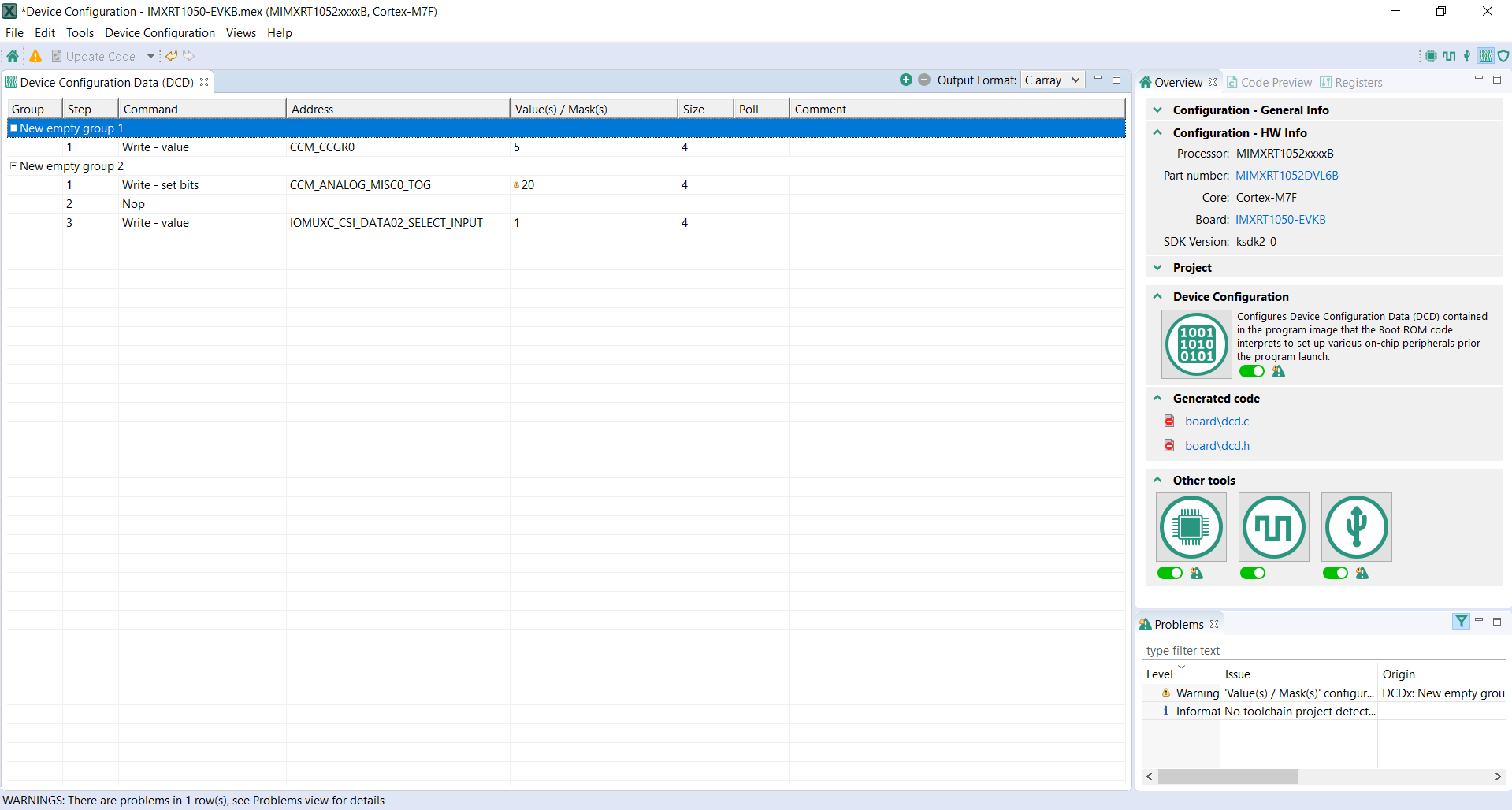
Device Configuration tool#
Device Configuration Data (DCD) view#
The Device Configuration Data (DCD) view displays memory initialization commands of your currently active configuration. Here, you can create command groups and commands and specify their parameters.
Device Configuration Data (DCD) view actions#
The following is a list of command and command group-relevant actions that you can perform in the Device Configuration Data (DCD) view:
Create a new command group - Right-click the table and choose Add Group from the context menu.
Re/Name a command group - Left-click the command group cell and enter the required name.
Disable a command group - Right-click the command group row and choose Disable Group from the context menu.
Remove a command group - Right-click the command group row and choose Remove Group from the context menu.
Collapse all command groups - Right-click the table and choose Collapse All Groups from the context menu.
Expand all command groups - Right-click the table and choose Expand All Groups from the context menu.
Add a command to a group - Right-click the table and choose Add Command from the context menu. Alternatively, click the Add Command button in the tool’s toolbar.
Specify command type - Left-click the row’s Command cell and choose from the dropdown menu.
Specify register address for a command - Left-click the row’s Address cell and choose from the dropdown menu.
Specify a value or a mask for a command - Left-click the row’s Value(s) / Mask(s) cell to open the mask window. Enter the value into the field and select OK. Alternatively, select Cancel to cancel the operation, or Reset to reset the value.
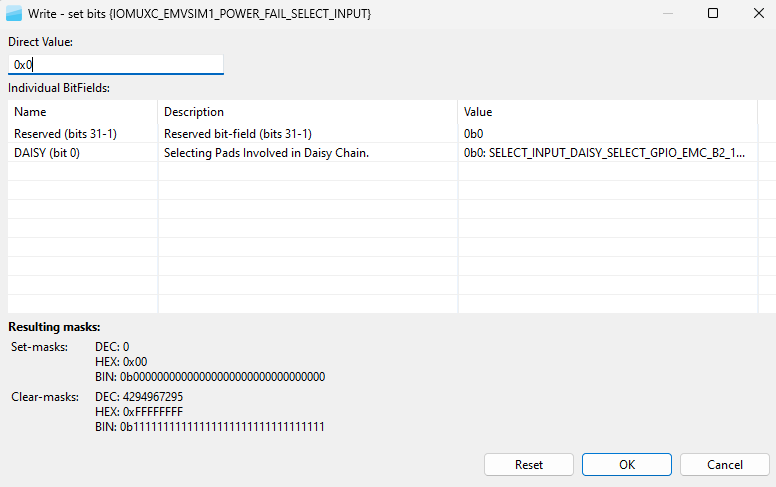
Mask#
Specify the size of write/read data for a command - Left-click the row’s Size cell and choose from the dropdown menu.
Specify the number of polls of a command - Left-click the row’s Poll cell and enter the required value.
Add a comment to a command - Left-click the row’s Comment cell.
Remove a command - Right-click the command row and choose Remove Command from the context menu. Alternatively, click the Remove Command button in the tool’s toolbar.
Cut a command - Right-click the command row and choose Cut from the context menu.
Copy a command - Right-click the command row and choose Copy from the context menu.
Paste a command - Right-click the command row and choose Paste from the context menu.
Note: You can remove all commands by clicking Device Configuration in the Menu bar and choosing Clear All Commands from the dropdown menu.
Basic cell selection shortcuts are applicable.
Select additional commands - Ctrl+Left-click the command row.
Code generation#
If the settings are correct and no error is reported, the code generation engine instantly regenerates the source code. You can view the resulting code in the Code Preview view of the Device Configuration tool.
Code Preview automatically highlights differences between the current and immediately preceding iteration of the code. You can choose between two modes of highlighting by clicking the Set viewing style for source differences. You can also disable highlighting altogether from the same dropdown menu. Such features as Copy, Search, Zoom-in, Zoom-out, and Export source are available in the Code Preview view. The search can also be invoked by CTRL+F or from the context menu.
Device Configuration source code can be generated in a C array (default) or binary format.
The code in a C array format is generated in two files:
dcd.c
dcd.h
The code in a binary format is generated in a single file:
dcd.bin
To change the code format, choose the required option from the dropdown menu in the Device Configuration Data (DCD) view.
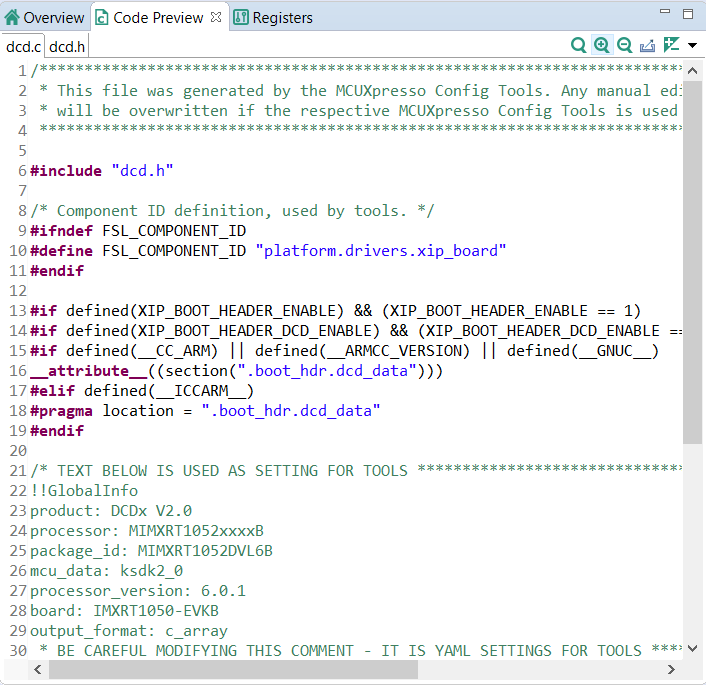
Code Preview DCT#