Installer update
The MCUXpresso Installer automatically checks for updates in the background at startup. When a newer version is available, you are notified immediately so you never miss an update.
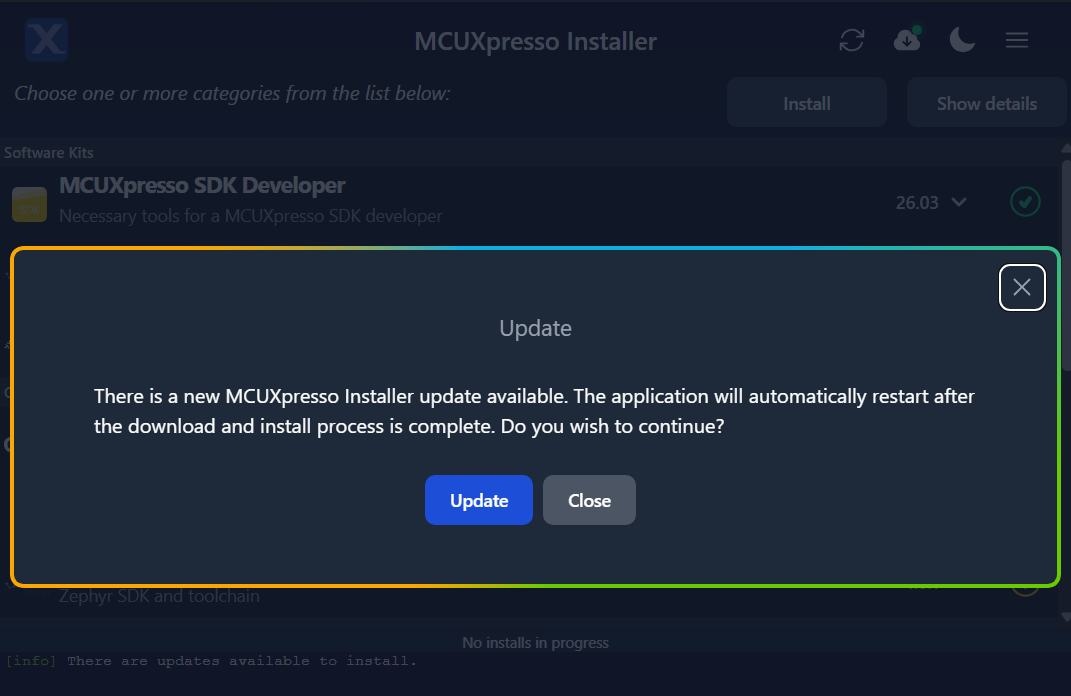
Note: This update is different from a components update. Components updates are silently installed until a new version of the Installer is available. To continue to get components updated, it is necessary to update the Installer to the latest version using this feature. Once updated, components updates resume.
To update the MCUXpresso Installer later, use the Update button.

The icon changes depending on the update status of the application. The following states are possible:
Up to date

The icon is in its default state, without any indicators, and the tooltip shows the message “Up to date”. The user can click the icon to open a different menu to refresh the application and check for updates.

Updates available
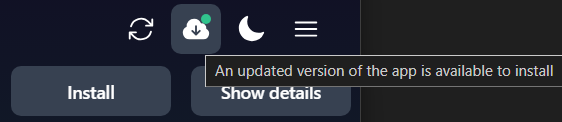
The icon shows a pulsing green indicator and the tooltip shows the message “An updated version of the app is available to install”. The user can click the icon to enter the update menu.
Clicking the update button fetches the newest available version of the Installer application in the background and installs it once the application is closed.
Updating

The icon shows a pulsing blue indicator and the tooltip shows the message “Updates are installed and will be applied after application restart”. Opening the update menu displays the same message.

Update server unavailable

The icon shows a pulsing red indicator and the tooltip shows the message “Could not connect to update server. Updates are unavailable”. Usually this state is due to being disconnected from the Internet, but it can also occur on improperly configured networks. Entering the update menu shows a similar message.
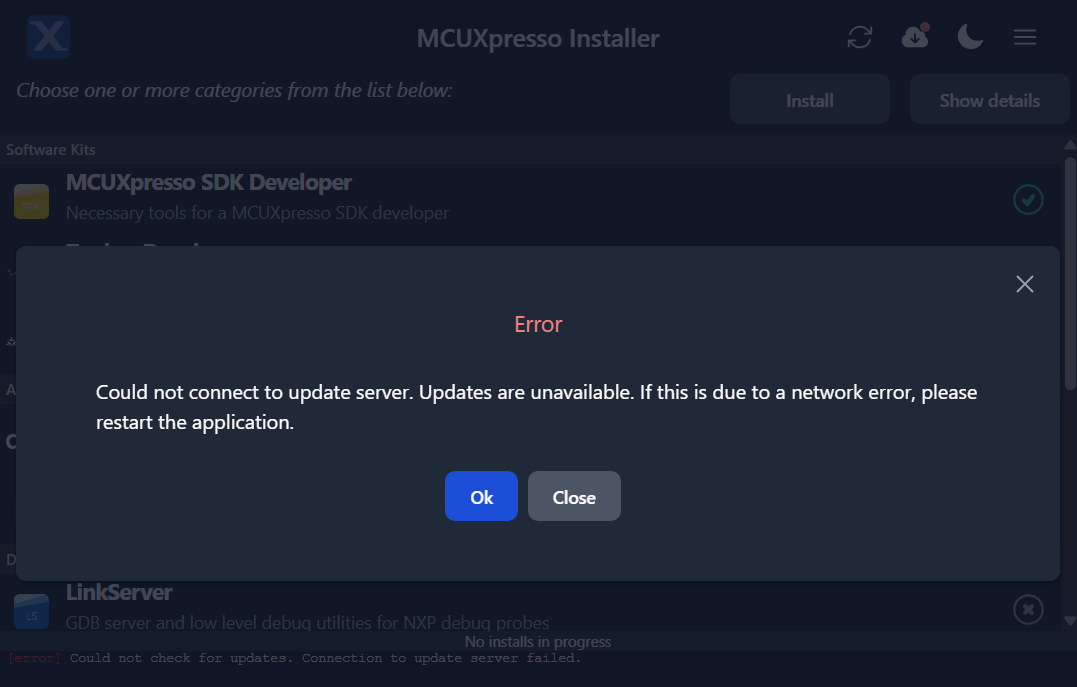
In the case that the connection to the Internet is restored, it is necessary to restart the Installer application to restore network connectivity.
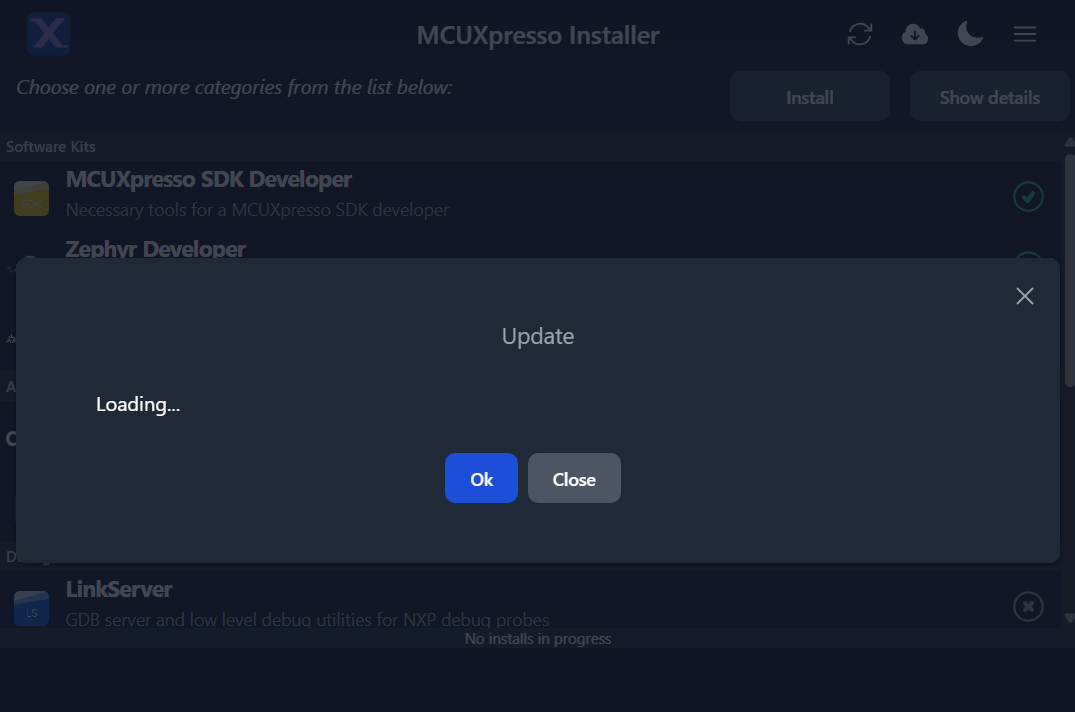
Loading
The icon shows a pulsing red indicator and the tooltip shows the message “Loading”. Entering the update menu shows a loading message. Once the application connects to the update server, the message updates. This process usually takes a few seconds, but may take longer on slower networks.
Postinstall

After the download and installation are completed, the user will be notified via a console message and the installer automatically restarts to apply the update.