
Tire Pressure Monitoring System Sensor and Monitor#
This section describes the implemented profiles and services, user interactions, and testing methods for the TPMS Sensor and TPMS Monitor applications.
Implemented profiles and services#
The TPMS Sensor application implements a GATT server, the TPMS profile and the following services.
Tire Pressure Monitoring System Service (TPMS)
Battery Service v1.0
Device Information Service v1.1
The application behaves as a GAP peripheral node. It enters GAP Limited Discoverable Mode to perform either connectable or non-connectable advertising. When performing connectable advertising, it waits for a Primary Monitor to connect and configure it, as defined by the TPMS Profile. When performing non-connectable advertising, it broadcasts packets containing the tire pressure and temperature values.
The TPMS Service is defined by the Bluetooth SIG.
The TPMS Monitor application implements a GATT client or server for the following profile and services.
Tire Pressure Monitoring System Service (TPMS)
Battery Service v1.0
Device Information Service v1.1
The application behaves as a GAP central node. It enters GAP Limited Discovery Procedure and searches for connectable or non-connectable advertising packets from TPMS Sensors. When a TPMS Sensor is found, the Monitor can connect to it, pair, bond, and read/write TPMS characteristics as defined by the TPMS Profile. The Monitor can also receive non-connectable broadcast packets containing tire pressure and temperature values from sensors.
Parent topic:TPMS Sensor and Monitor
Supported platforms#
The TPMS Sensor and Monitor applications are supported by the following platforms:
KW45B41Z-EVK
KW47-EVK
FRDM-KW43
Parent topic:TPMS Sensor and Monitor
User interface#
After flashing, both devices are in idle mode. To start scanning on the TPMS Monitor, press the SCANSW button. To start advertising on the TPMS Sensor, press either the CONNADVSW or NCONNADVSW buttons. When in GAP Limited Discovery Mode or scanning mode, CONNLED is flashing on either device. When the devices connect, CONNLED turns solid. To disconnect the TPMS Monitor, hold the SCANSW button pressed for 2-3 seconds.
Parent topic:TPMS Sensor and Monitor
Usage#
The setup requires two supported platforms, one for the TPMS Sensor application and one for the TPMS Monitor application.
Open a serial port terminal and connect it to the TPMS Monitor board, in the same manner as described in Testing devices. The start screen is displayed after the board is reset.
To start connectable advertising on the TPMS Sensor, press the CONNADVSW button. The device will start advertising.
To start scanning on the TPMS Monitor, press the SCANSW button.
If the TPMS Monitor connects to a sensor node, it will:
perform service discovery
pair and bond to establish itself as a Primary Monitor
if the Sensor already has a Primary Monitor, bonding will not be performed and the Monitor will have the role of Secondary Monitor
The following steps assume the role is that of Primary Monitor
read the TPMS Properties, TPMS Signing Key, TPMS Tire Pressure, TPMS Tire Temperature and TPMS Tire Acceleration characteristic values
update the TPMS Duty Cycle by writing to the corresponding characteristic
enable indications for the TPMS Signing Key characteristic
enable notifications for the TPMS Tire Pressure and TPMS Tire Temperature characteristics
While in connection, pressing CONNADVSW on the TPMS Sensor will notify the Tire Pressure and Temperature to the Monitor, while pressing NCONNADVSW will update the Signing Key and indicate this to the Monitor.
At this point, the connection can be terminated by either disconnecting via long press of the SCANSW on the TPMS Monitor or by resetting the boards.
To start non-connectable advertising on the TPMS Sensor, press the NCONNADVSW button. The device will start advertising in non-connectable mode (if no Primary Monitor exists, the advertising will be connectable).
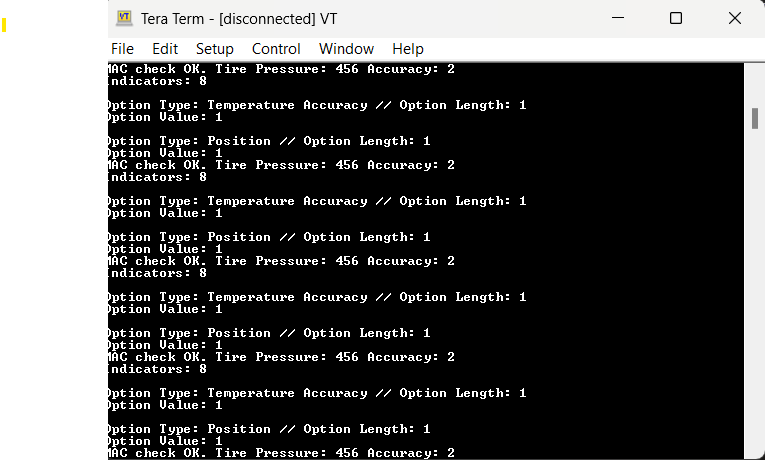
To start scanning on the TPMS Monitor, press the SCANSW button. The TPMS Monitor will display the TPMS data in the non-connectable advertising of the TPMS Sensor if it successfully authenticates the payload as described by the TPMS Profile specification.
To factory reset the Sensor, long press NCONNADVSW. For the Monitor, long press FACTORYRESETSW.
Output Console on TPMS Monitor
Parent topic:TPMS Sensor and Monitor
Parent topic:Bluetooth LE stack and demo applications