
Run an example application#
To download and run the application, perform these steps:
This board supports the CMSIS-DAP/mbed/DAPLink debug probe by default. Visit MBED and follow the instructions to install the Windows® operating system serial driver. If running on Linux OS, this step is not required.
Connect the development platform to your PC via USB cable. Connect the USB cable to J11 and make sure SW1[1:4] is 0010b.
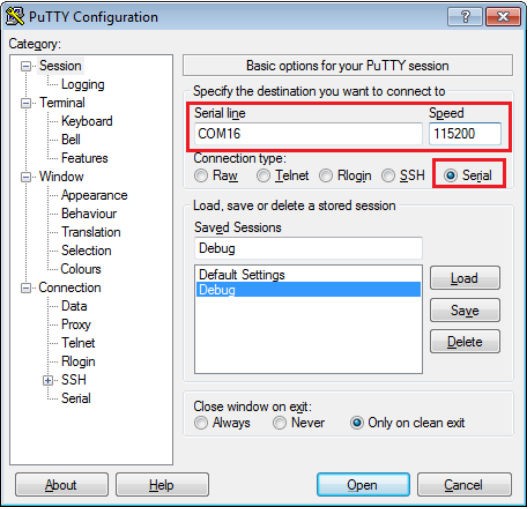
Open the terminal application on the PC, such as PuTTY or TeraTerm, and connect to the debug COM port (to determine the COM port number, see How to determine COM port). Configure the terminal with these settings:
115200 or 9600 baud rate, depending on your board (reference
BOARD_DEBUG_UART_BAUDRATEvariable in the board.hfile)No parity
8 data bits
1 stop bit
In IAR, click the Download and Debug button to download the application to the target.

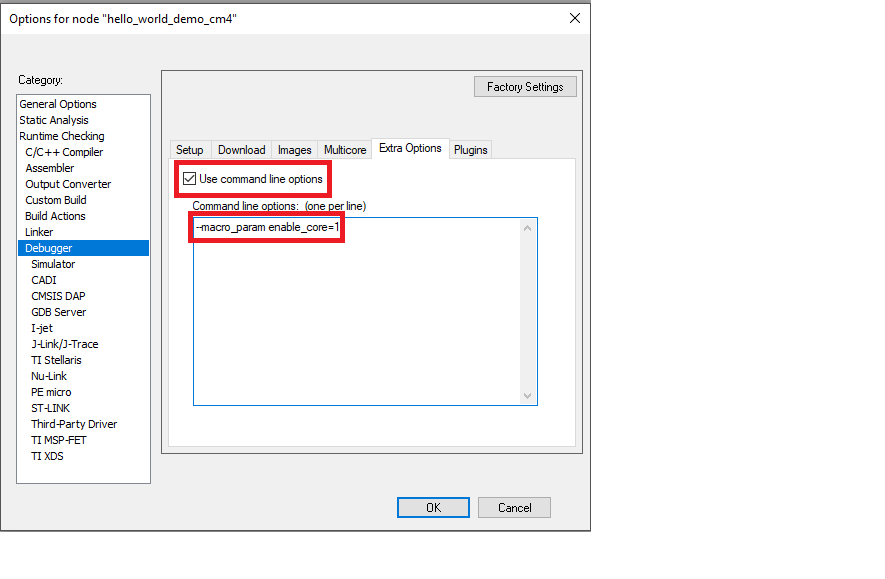
When using CMSIS-DAP to debug cm4 project on IAR, an extra option needs to be specified in debugger settings. Check and fill in –macro_param enable_core=1 in Debugger -> Extra Options -> Command line options, as shown in Figure 3.
If debugging with JLINK as probe,
jlinkscriptfile is needed.When downloading the
cm7project, check Use command line options, as shown in Figure 4.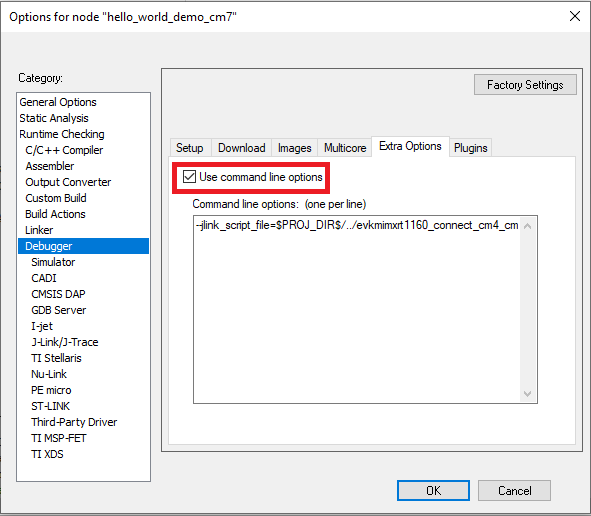
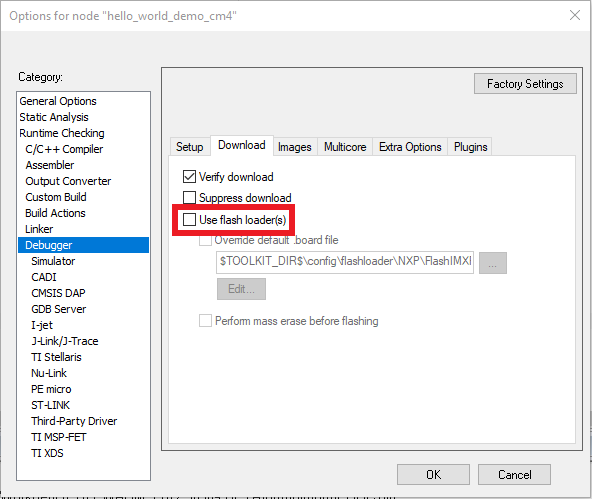
When downloading the
cm4project, uncheck Use flash loader(s), as shown in Figure 5, and change the contents of command line options as below:Target with SDRAM
--jlink_script_file=$PROJ_DIR$/../evkmimxrt1160_connect_cm4_cm4side_sdram.jlinkscript
Other target
--jlink_script_file=$PROJ_DIR$/../evkmimxrt1160_connect_cm4_cm4side.jlinkscript
The application is then downloaded to the target and automatically runs to the
main()function.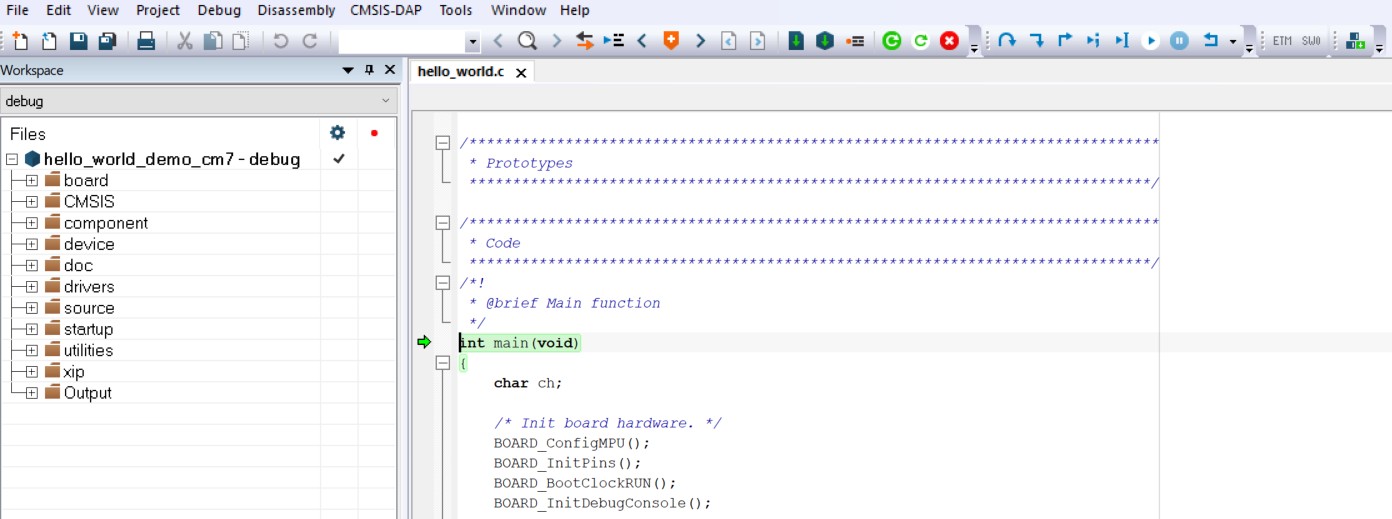
Run the code by clicking the Go button to start the application.

The
hello_worldapplication is now running and a banner is displayed on the terminal. If this is not true, check your terminal settings and connections.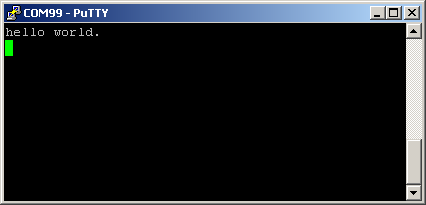
Note: There are some limitations on MCUXpresso IDE debugging. For details, see Section 8.6 IAR debug limitation in MCUXpresso SDK Release Notes for MIMXRT1160-EVK (document MCUXSDKMIMXRT116XRN).
Parent topic:Run a demo application using IAR