
Run a demo application using IAR#
This section describes the steps required to build, run, and debug example applications provided in the MCUXpresso SDK.
Note:
IAR Embedded Workbench for Arm version 9.50.1 is used in the following example, and the IAR toolchain should correspond to the latest supported version, as described in the MCUXpresso SDK Release Notes for MIMXRT700-EVK (document MCUXSDKRT798RN).
When debug or run the flash_debug or flash_release targets, make sure that the board is configured as XSPI0 boot mode (SW10 1 - OFF, 2 - ON).
Build an example application#
Do the following steps to build the hello_world example application.
Open the desired demo application workspace. Most example application workspace files can be located using the following path:
<install_dir>/boards/<board_name>/<example_type>/<application_name>/iar
Using the MIMXRT700-EVK hardware platform as an example, the
hello_worldworkspace is located in:<install_dir>/boards/mimxrt700evk/demo_apps/hello_world/cm33_core0/iar/hello_world_cm33_core0.eww
Other example applications may have additional folders in their path.
Select the desired build target from the drop-down menu.
For this example, select hello_world – debug.
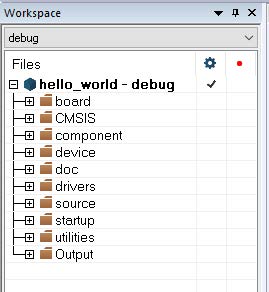
To build the demo application, click Make, highlighted in red in Figure 2.
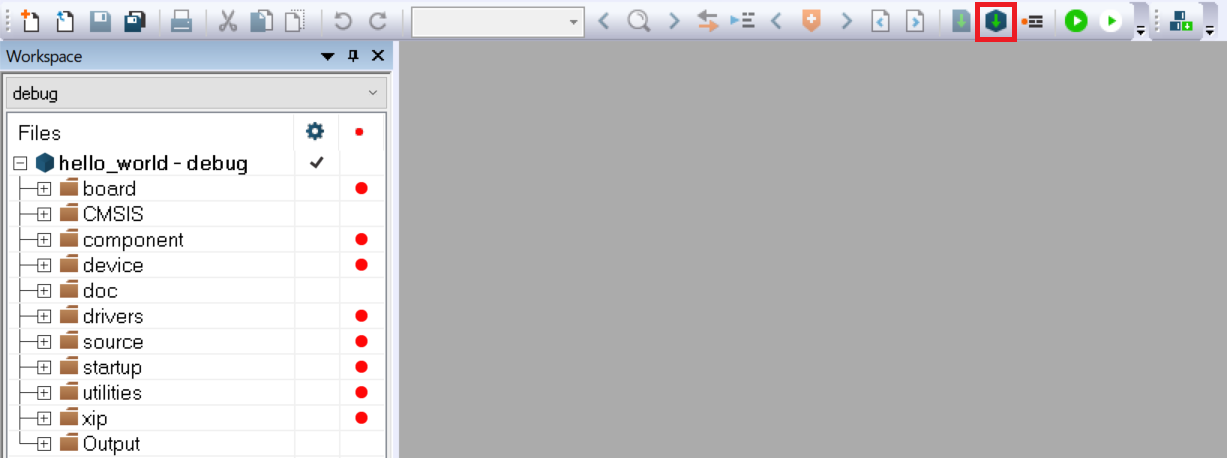
The build completes without errors.
Parent topic:Run a demo application using IAR
Run an example application#
To download and run the application, perform these steps:
To get the MCU-Link firmware ready, see Updating debugger firmware.
Connect the development platform to your PC via USB cable.
Open the terminal application on the PC, such as PuTTY or TeraTerm, and connect to the debug COM port (to determine the COM port number, see How to determine COM port). Configure the terminal with these settings:
115200 or 9600 baud rate, depending on your board (reference
BOARD_DEBUG_UART_BAUDRATEvariable in the board.h file)No parity
8 data bits
1 stop bit

In IAR, click the Download and Debug button to download the application to the target.

The application is then downloaded to the target and automatically runs to the
main()function.
Run the code by clicking the Go button.

The
hello_worldapplication is now running and a banner is displayed on the terminal. If it does not appear, check your terminal settings and connections.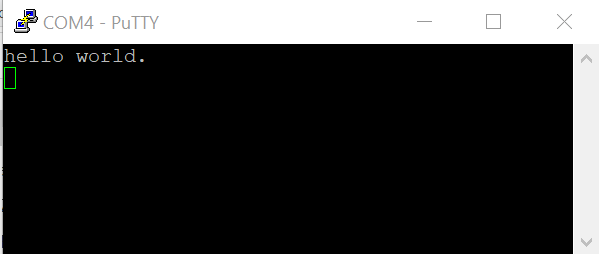
Parent topic:Run a demo application using IAR
Build and run a multicore example application#
This section describes the steps to build and run a multicore application. The demo applications workspace files are available in the folder:
<install_dir>/boards/<board_name>/multicore_examples/<application_name>/<core_id>/iar
Begin with a simple dual-core version of the Hello World application. The multicore Hello World IAR workspaces are available in the folder:
<install_dir>/boards/mimxrt700evk/multicore_examples/hello_world/cm33_core0/iar/hello_world_cm33_core0.eww
<install_dir>/boards/mimxrt700evk/multicore_examples/hello_world/cm33_core1/iar/hello_world_cm33_core1.eww
Build both applications separately by clicking the Make button. Build the application for the auxiliary core (cm33_core1) first, because the primary core application project (cm33_core0) must know the auxiliary core application binary when running the linker. When the auxiliary core application binary is not ready, it is impossible to finish the primary core linker.
By default, the primary core flash_debug target links the auxiliary core debug target, and the primary core flash_release target links the auxiliary core release target. During the primary core execution, the auxiliary core image is copied from flash into the SRAM and executed.
Build the
CM33_core1andCM33_core0projects respectively.Only click the Download and Debug button on the
CM33_core0project, IAR could help start to debug a multicore project. It is user-friendly to debug multicore examples with CMSIS-DAP on IAR (Multicore Project is set on Debugger → Multicore window).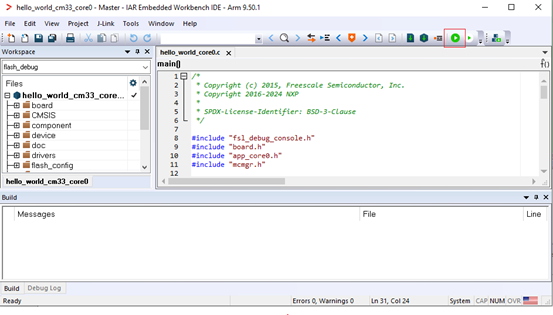
Start
core0and then startcore1on the CM33_core0 project.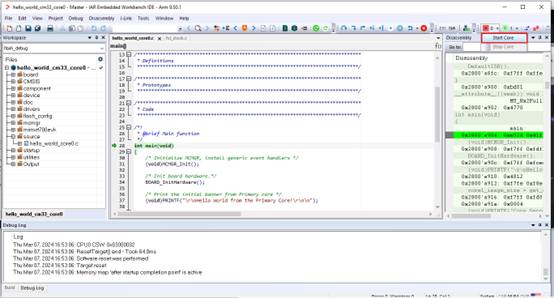
The
Hello_Worldmulticore demos are now running. A banner appears on the terminal and the LED blinks. If this is not true, check your terminal settings and connections.
Parent topic:Run a demo application using IAR